If you've used Windows recently, you're probably on Windows 11 — or wondering whether you should upgrade from Windows 10. With big changes to the interface and questions about hardware requirements, it's a topic that confuses a lot of people.
This guide answers the practical questions: what's new in Windows 11, whether you should upgrade, and how to set it up well.
What we'll cover
What's new in Windows 11 Should you upgrade? Does your PC support it? Setting it up wellWhat's new in Windows 11
Windows 11 is the current version of Windows, and it brought a fresh look and several improvements:
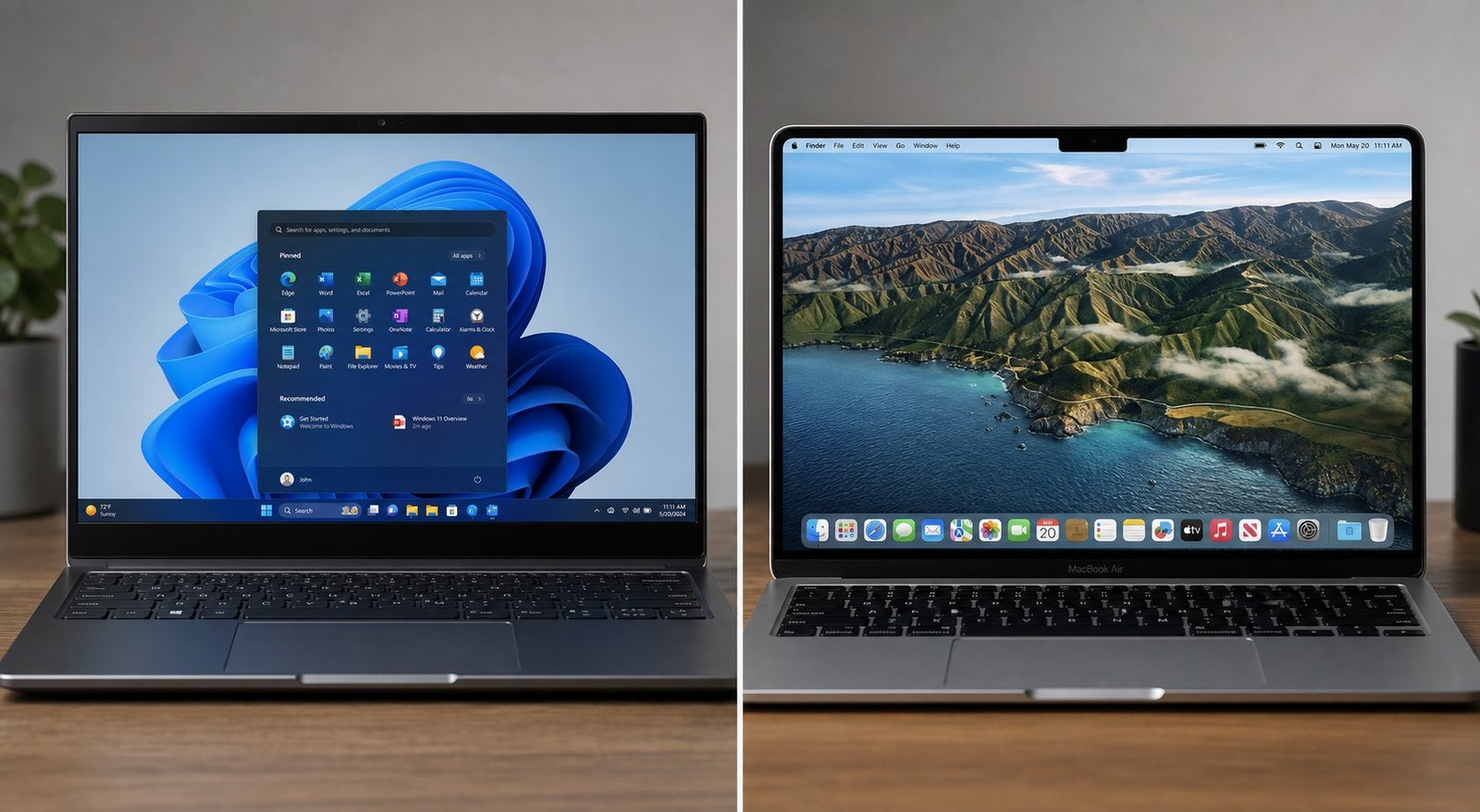
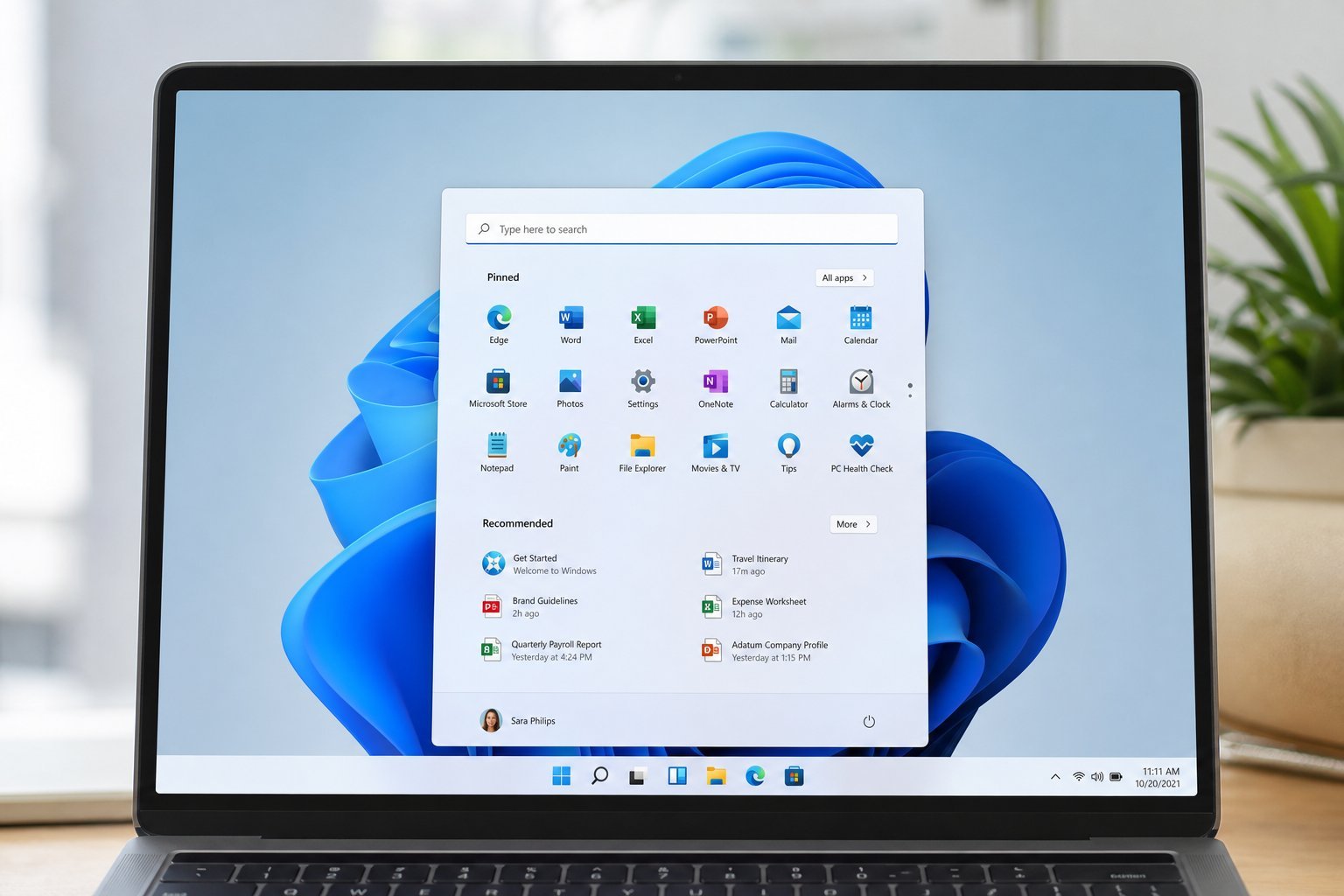
- A centered taskbar and new Start menu. The most visible change — a cleaner, modern look.
- Rounded corners and new design. A more polished, consistent visual style.
- Snap layouts. Easier to arrange multiple windows on screen for multitasking.
- Improved gaming. Features like Auto HDR and better performance for games (see our optimization guide).
- Better security. Built-in protections and hardware-based security requirements.
- Widgets and a redesigned Settings. A cleaner, more organized experience.
For most people, the changes are mostly cosmetic and ergonomic — the core Windows experience is familiar. It's not a radical rework, but a modern polish.
Should you upgrade?
Here's the practical guidance:
💡 The short answer
If your PC is supported, upgrade to Windows 11 — it's free, modern, and Windows 10 is reaching end-of-support, so staying on it becomes a security risk. Don't stay on an outdated, unsupported version.
Does your PC support it?
Windows 11 has specific hardware requirements that caused confusion at launch. The main ones:
- Recent processor. Windows 11 requires a relatively modern CPU.
- TPM 2.0. A security chip (TPM 2.0) is required. Many newer PCs have it; older ones may not.
- 4 GB RAM and 64 GB storage as minimums.
- UEFI Secure Boot support.
You can check compatibility with Microsoft's "PC Health Check" app. If your PC supports it, the upgrade is easy. If not, you have options: keep using Windows 10 (risky after support ends), upgrade the hardware, or consider alternatives like Linux (a leap many aren't ready for).
⚠️ Don't force an unsupported install
There are workarounds to install Windows 11 on unsupported hardware, but they're not recommended — you may miss critical updates and security features. If your PC doesn't support Windows 11 and you can't upgrade it, plan a replacement rather than risking an unsupported install.
Setting it up well
Whether upgrading or setting up fresh, a few tips make Windows 11 better:
Taking a few minutes to set up Windows 11 properly — privacy settings, updates, a tidy Start menu — makes the daily experience better.
📌 Bottom line
Windows 11 is the current version of Windows, with a modern look, better multitasking (Snap layouts), improved gaming and stronger security. If your PC is supported, upgrade for free — Windows 10 is reaching end-of-support, so staying on it becomes a security risk. Check compatibility with the PC Health Check app, and don't force an install on unsupported hardware. Back up first, review privacy settings, enable updates, and declutter the Start menu for the best experience.