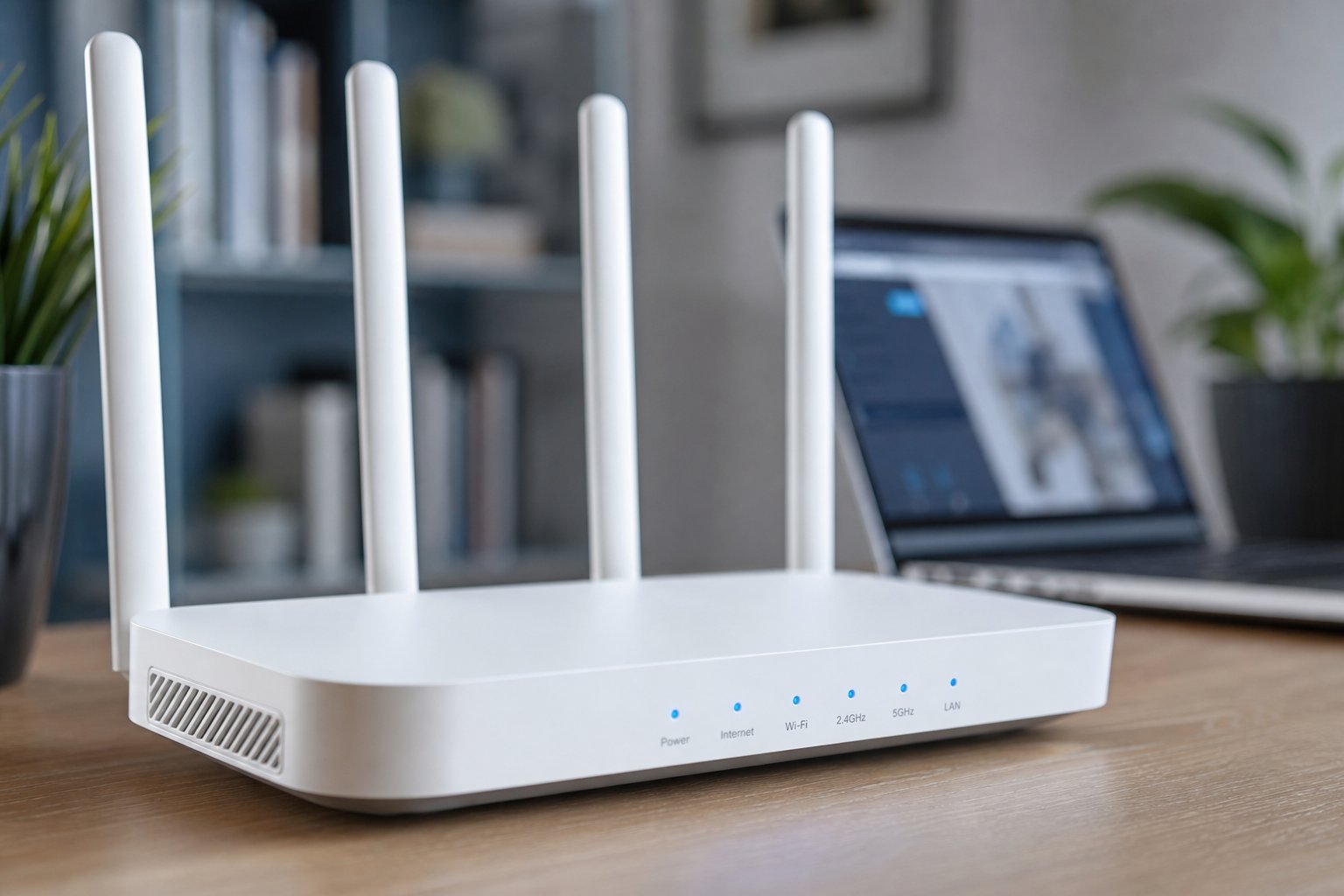
Few things are more frustrating than a spinning loading icon. You've paid your internet bill, you're sitting right next to the router, and yet the video buffers, the download crawls, and the web page feels like it's from 1999.
Here's the good news: a slow connection is often not your provider's fault, and it's frequently fixable in minutes without spending a single rupee or dollar. Before you call your internet company and wait on hold, work through this guide. It's organized from the easiest, zero-cost fixes to the more involved ones — so start at the top and only go down the list if you're still having problems.
Quick jump
Step 1: Actually measure your speed Step 2: The router restart that fixes most things Step 3: Put your router where it works Step 4: Switch Wi-Fi channels Step 5: Kick bandwidth hogs off the network Step 6: Go wired when it matters Step 7: When it's time to upgradeStep 1: Actually measure your speed
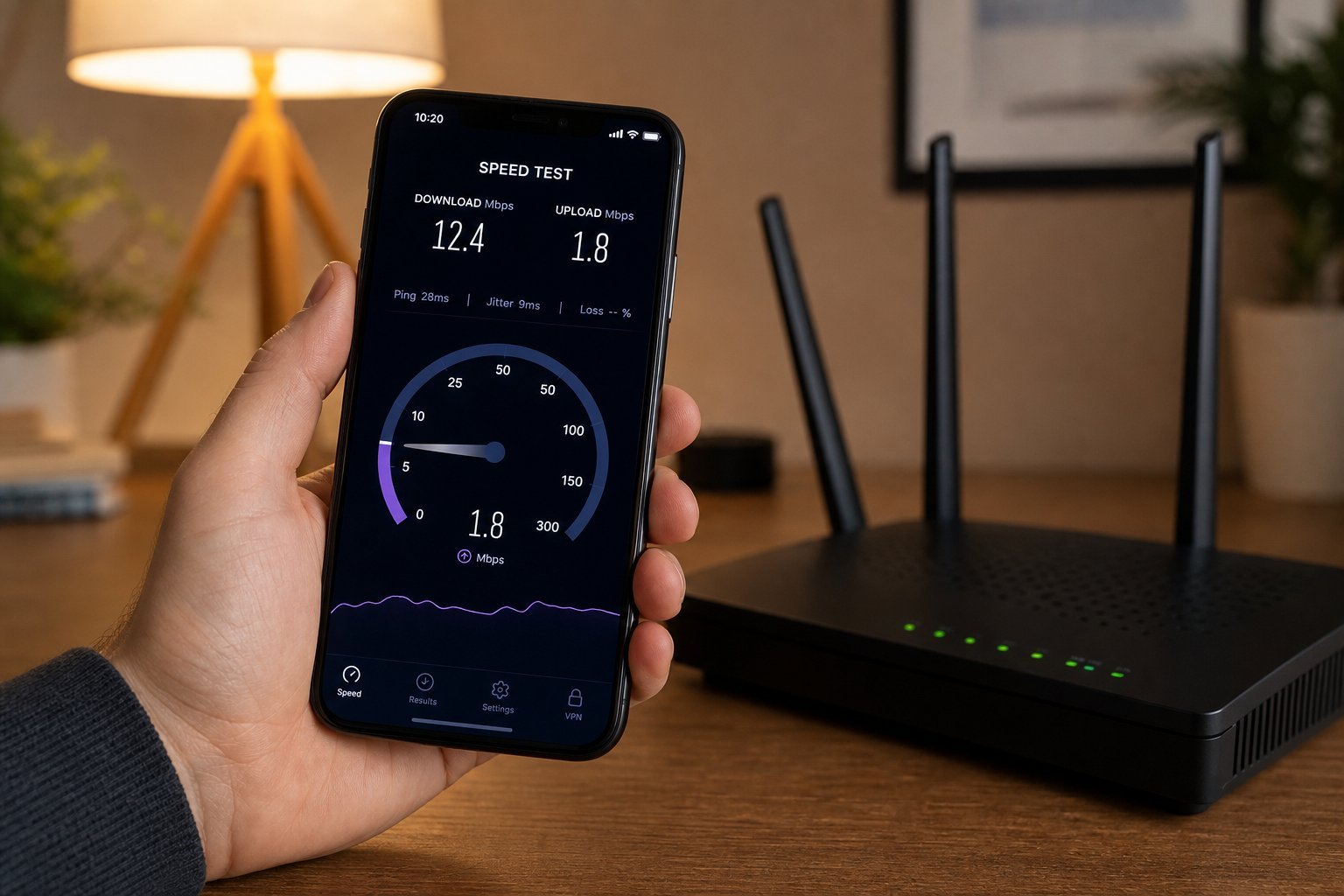
You can't fix a problem you can't measure. Your gut feeling that "the internet is slow" isn't enough — you need numbers. Run a speed test a few times at different times of day.
Here's how to do it properly:
The three numbers mean different things:
- Download speed (Mbps) — how fast you receive data. Matters for streaming, browsing and downloads.
- Upload speed (Mbps) — how fast you send data. Matters for video calls, gaming and uploading files.
- Ping / latency (ms) — how quickly a data packet makes a round trip. Low ping is critical for gaming and video calls.
Compare your results to the speed you're paying for. If you pay for 100 Mbps but consistently get 10, something's wrong. If you pay for 50 and get 48, your connection is fine — the slowness is coming from a specific device or website, not your internet.
📊 What do the numbers mean for real life?
To stream HD video smoothly you want roughly 5–10 Mbps down. For 4K, aim for 25 Mbps or more. For a stable video call, you want under ~100ms ping and a solid upload. For online gaming, low ping matters more than raw speed.
Step 2: The router restart that fixes most things
It sounds too simple to work, but restarting your router genuinely resolves a shocking number of slow-internet issues. Routers are small computers that run for weeks or months on end, and they accumulate memory leaks, stale connections and glitches just like any device.
Here's the right way to do a "power cycle" — not just flipping it off and on:
If you have a separate modem and router, restart the modem first, then the router. Do this every few weeks as a habit, and you'll prevent a lot of slow-morning frustration before it starts.
✨ Pro habit
Make it a habit to restart your router once a month, say on the first day of the month. It's like giving your network a fresh start and takes less than five minutes.
Step 3: Put your router where it works
Your Wi-Fi signal is radio waves, and radio waves don't love obstacles. Where you place your router has a bigger impact on your speed than almost anything else you can control.
Follow these placement rules:
- Central location. Put the router near the middle of your home, not in a corner or tucked in a closet.
- Raise it up. A shelf or high table is better than the floor.
- Away from metal and appliances. Microwaves, refrigerators and metal furniture can interfere with the signal.
- Away from walls and fish tanks. Water absorbs Wi-Fi signal surprisingly well.
- No direct sunlight or enclosed cabinets. Routers need airflow; overheating causes slowdowns and dropouts.
Step 4: Switch Wi-Fi channels
If you live in an apartment building or a crowded neighborhood, your Wi-Fi is competing with dozens of neighboring networks for the same radio space. This is like everyone trying to talk at once in a busy room — everyone gets louder, but nobody gets clearer.
Routers have channels they can broadcast on, and sometimes your router defaults to the most crowded one. Changing it can produce a noticeable improvement. Here's the general idea:
192.168.1.1 or 192.168.0.1 into your browser — check the sticker on your router).A slightly more advanced but effective tip: if your router is dual-band (most modern ones are), it broadcasts two networks — a 2.4 GHz one and a 5 GHz one. The 5 GHz network is faster and less congested but has a shorter range. Connect your important devices to 5 GHz for a speed boost.
Step 5: Kick bandwidth hogs off the network
Sometimes your internet isn't slow — it's crowded. A single device streaming a 4K movie, downloading a huge game update, or running cloud backups can quietly eat most of your bandwidth.
To find out what's using your connection:
- Check your router's admin page — many show a list of connected devices and their activity.
- Look for devices you don't recognize and remove them (a password change also helps security).
- Pause large downloads or schedule them for overnight when nobody's using the network.
- On smart TVs and consoles, disable auto-updates or set them to overnight only.
⚠️ Unrecognized devices?
If you see devices on your network you don't recognize, change your Wi-Fi password immediately. An unknown device could be a neighbor on your network, which slows everyone down and is a security risk.
Step 6: Go wired when it matters
Wi-Fi is convenient, but nothing beats a physical cable. For activities where stability and low latency are critical — video calls, online gaming, big file uploads — plug your device into the router with an ethernet cable.
A wired connection is not affected by walls, interference or neighbor congestion. If your slow internet only happens on one device and it's far from the router, moving that device closer or plugging it in could be the entire fix.
If your router is far from your desk, don't despair — powerline adapters let you run a network connection through your home's electrical wiring. You plug one into a wall socket near the router and another near your device, connect cables to both, and you get a stable wired-style connection without drilling holes.
Step 7: When it's time to upgrade
If you've done everything above and you're still slow, the problem may be your hardware or your plan. Consider these before giving up:
- Is your router old? A router that's 5+ years old may not support modern Wi-Fi standards. A newer Wi-Fi 6 router can meaningfully improve speed and range.
- Are you paying for enough speed? A household with multiple streams and gamers needs more bandwidth than a single person checking email.
- Is your provider actually delivering? If your wired connection at the router is far slower than your plan, that's a provider problem — now it is worth calling them.
- Could a mesh system help? In large or multi-story homes, a single router often can't cover everything. A mesh Wi-Fi system spreads coverage with multiple nodes.
📌 Quick recap
Measure your real speed first, restart the router properly, reposition it centrally and up high, switch to a less-crowded channel, kick bandwidth hogs off, and go wired for critical tasks. Only then consider upgrading hardware or calling your provider. Most slow-internet problems are fixed by the first few steps — and they cost nothing.