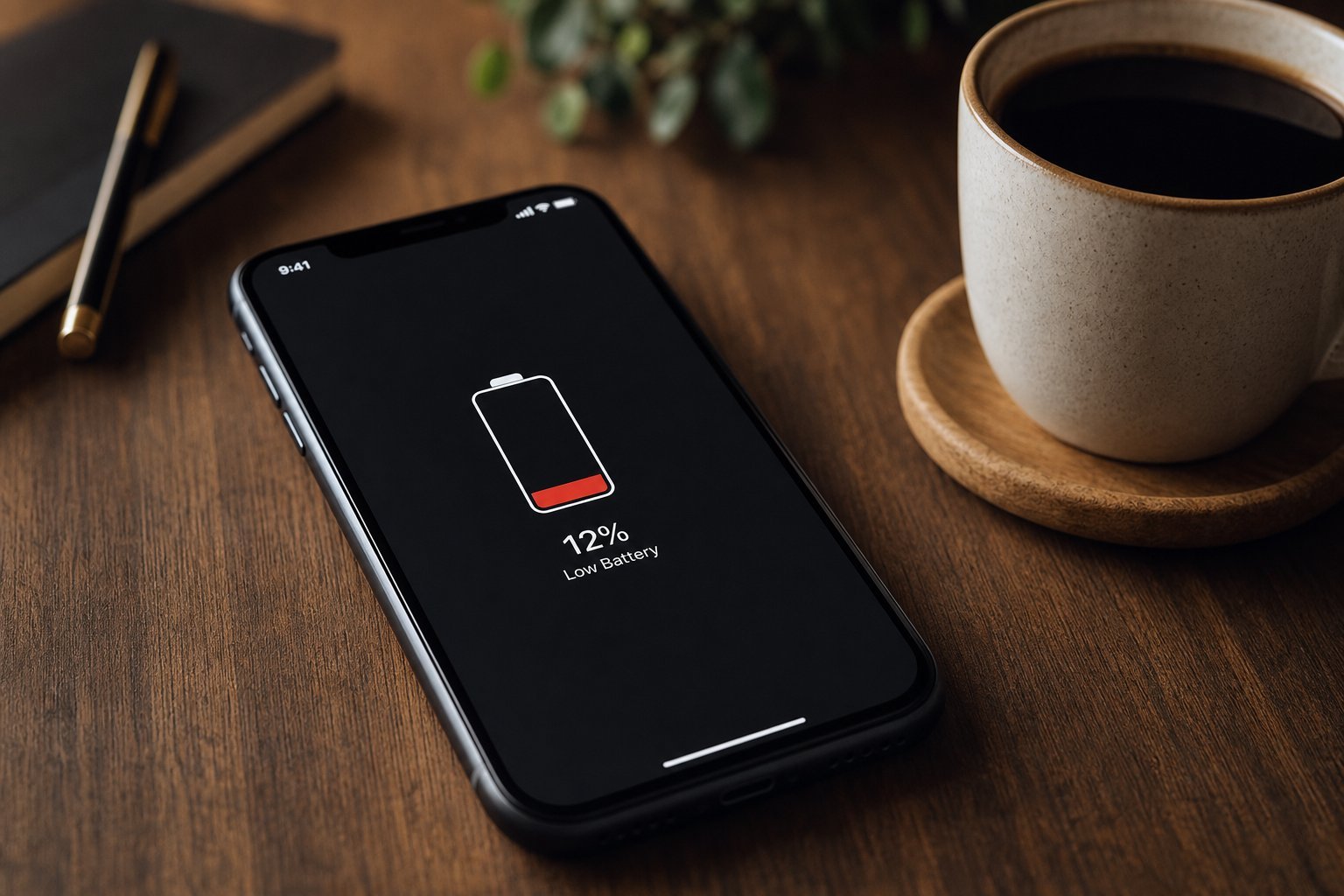
Your phone is supposed to last the day. But lately it's giving up by early afternoon, the battery icon dropping before your eyes like a leaky bucket. You're not imagining it — and you're definitely not alone. Battery complaints are the single most common tech problem people ask us about.
The good news: a draining battery is often fixable, and in many cases it's not the battery at all — it's an app or setting quietly working against you. This guide shows you how to diagnose the problem properly in about ten minutes, and then what to do about it.
In this guide
Step 1: Check your battery health Step 2: Find the apps draining power Step 3: Adjust the settings that drain batteries Step 4: The screen — your biggest battery eater Step 5: Poor signal drains batteries silently Step 6: When you need a new batteryStep 1: Check your battery health
Before you blame apps, find out whether the battery itself has aged. Every rechargeable battery slowly loses capacity over time. A brand-new phone battery holds 100% of its designed capacity; after two or three years, that can drop to 80% or less, which means less time between charges no matter what you do.
Here's how to check on the two main platforms:
- iPhone: Go to Settings → Battery → Battery Health. You'll see "Maximum Capacity." Below about 80%, Apple recommends a battery service.
- Android: The location varies by brand (look in Settings under Battery or Device Care). Some brands show a "battery health" figure; others require a third-party app that reads it.
If your battery health is below 80% and your phone is more than two years old, a replacement battery is probably the real fix, and most modern phones make it straightforward (though some designs are more DIY-friendly than others — more on that below).
✨ A healthy battery reality check
If your battery is above 85% health but still draining fast, the problem is almost certainly software — keep reading, because the next steps will likely solve it.
Step 2: Find the apps draining power
Both major platforms now have built-in tools that show exactly where your battery is going. This is the single most useful diagnostic you'll do.
What you're looking for:
- An app using a huge share — especially one you barely use. Something using 40% of battery when you only opened it twice is a red flag.
- Background activity — apps listed as running in the background. Social media, location-heavy apps and messengers are common offenders.
Once you spot a culprit, you have options: force it closed, restrict its background activity, or if it's truly useless, uninstall it. Many people are shocked to discover a game they forgot they installed was silently eating 30% of their battery every day.
Step 3: Adjust the settings that drain batteries
Some of the biggest battery drains aren't apps at all — they're settings. A few well-chosen changes can buy you hours of extra life:
- Turn off background app refresh for apps that don't need it. Apps refreshing in the background constantly wake the phone and use power.
- Limit location services. Having GPS on for every app is wasteful. Set location to "While Using" or "Only When I Open the App" for most apps.
- Disable unnecessary notifications. Every notification wakes the screen and the radios. Silence the apps that don't matter.
- Turn off always-on display if your phone has it — a constantly-lit screen is a hidden drain.
- Enable low power mode when you're running low. It automatically trims background activity.
💡 The "while using" trick
For any app that asks for your location, choose "While Using" instead of "Always." It's the single most effective permission change for battery life and privacy at the same time.
Step 4: The screen — your biggest battery eater
Here's a fact that surprises most people: your screen is almost always the #1 battery consumer. It's big, bright and always on while you're using the phone. Brightness and screen-on time matter more than almost anything else.
Ways to win back battery:
- Turn on auto-brightness so the phone adjusts itself instead of running full brightness all day.
- Manually lower brightness when you're indoors. Most people don't need their screen anywhere near max.
- Reduce your screen timeout — set it to 30 seconds or a minute so the screen doesn't stay lit when you're not looking at it.
- Consider a dark or dark-mode wallpaper. On phones with OLED screens, dark pixels use far less power than bright ones.
Step 5: Poor signal drains batteries silently
Here's a subtle one almost nobody knows about. When your phone has poor signal — in a basement, a rural area, or a spot with lots of interference — it doesn't just give up. It increases its radio power, desperately trying to hold onto the network. That extra effort drains your battery much faster than normal.
If you notice your battery dropping unusually fast in a specific location, poor signal is likely the culprit, not your phone.
- Use Wi-Fi calling where available — it lets your phone use your internet connection for calls instead of struggling with weak cell signal.
- Turn on Airplane Mode in dead zones. If you're somewhere with no signal at all, the phone's constant searching is pure battery waste. Switch to Airplane Mode and only re-enable it when you have signal.
Step 6: When you need a new battery
If your battery health is genuinely low — below 80% — no amount of app management will fully fix it. The battery is simply worn out. Here's your decision framework:
- If the phone is under warranty — contact the manufacturer; a failing battery may be covered.
- If it's an iPhone — Apple and authorized service providers offer battery replacements, usually at a reasonable fixed price.
- If it's an Android — check with the brand or a reputable repair shop. Some phones (like certain Samsung and older models) have removable or easily-replaceable batteries.
- DIY caution: Replacing a battery yourself requires special tools and some skill. If you're not confident, leave it to a professional to avoid damaging the phone.
⚠️ Safety first
A swollen or bulging battery is a fire hazard. If the back of your phone is lifting or the screen is pushing outward, stop using the phone immediately and take it to a professional. Do not attempt to puncture or remove it yourself.
📌 Your 10-minute action plan
Check battery health. Open battery usage and spot the guilty app. Trim background refresh, location and screen brightness. Watch for poor-signal zones. If health is below 80%, plan a battery replacement. Ten minutes of diagnosis saves you from a whole day of frustration — and usually from buying a new phone you didn't need.