Buying a laptop is stressful. Between the processor names that sound like a typo (i7? Ryzen 5? what's an M3?), the RAM and storage jargon, and the thousands of models on offer, it's no wonder people either overpay or settle for something wrong.
Here's the reassurance you need: you don't have to understand every spec to buy the right laptop. You just need to match a few key decisions to how you'll actually use it. This guide gives you a simple, stress-free framework — by the end, you'll know exactly what to look for.
Your decision framework
Step 1: Define how you'll use it Step 2: Pick the right size Step 3: The only specs that matter Step 4: Storage — the one people get wrong Step 5: Choose your operating system Step 6: Match a budgetStep 1: Define how you'll use it
Before you look at a single laptop, write down what you'll actually do with it. This one step removes 90% of the confusion. Here are the common user profiles:
- The everyday user — browsing, email, video calls, streaming, Microsoft Office, light photo editing. Almost any modern laptop handles this.
- The student — note-taking, research, word processing, video lectures, portability, and long battery life. You want something light with all-day battery.
- The professional/creator — video editing, design, programming, heavy spreadsheets, multitasking. You need more power: a stronger processor, more RAM, and a good screen.
- The gamer — modern games. You need a dedicated graphics card and good cooling. (More on this in our gaming PC guide.)
Notice something important: most people are "everyday users" or "students." If that's you, you do not need the most expensive laptop on the shelf. Mid-range laptops handle everyday tasks beautifully.
Step 2: Pick the right size
Laptop screens come mostly in three sizes, and each trade-off matters:
| Screen | Weight | Best for | Trade-off |
|---|---|---|---|
| 13–14 inch | Light (~1.2–1.5 kg) | Portability, students, commuters | Smaller screen, less space |
| 15–16 inch | Heavier | All-rounders, creative work | Heavier to carry |
| 17 inch+ | Heavy | Gaming, desktop replacement | Bulky, poor battery |
The 13–14 inch size is the sweet spot for most people — powerful enough for daily work yet light enough to carry. If the laptop is mostly going to sit on a desk at home, a 15-inch is comfortable. If you'll carry it to classes or the office daily, prioritize lighter.
Step 3: The only specs that matter
Ignore the marketing noise and focus on three things: the processor, the RAM, and the screen. Here's what you actually need to know about each.
The processor (CPU)
The processor is the laptop's brain. You don't need to memorize model numbers — just understand tiers. For everyday and student use, a mainstream processor is plenty. For creative or gaming work, step up. In simple terms, "mid-range" processors handle all normal tasks with ease; you only need top-tier chips for serious work or gaming.
The RAM (memory)
RAM is how much your laptop can handle at once. This is worth getting right, because it's one of the few things you can't easily upgrade later:
- 8 GB — fine for basic browsing and documents, but a bit tight for multitasking.
- 16 GB — the sweet spot for most people. Handles multiple tabs, apps and light creative work comfortably. This is what we recommend.
- 32 GB or more — for heavy video editing, large data, or professional work.
✨ The RAM rule
If in doubt, choose 16 GB. It's the best balance of price and future-proofing, and it prevents the "everything lags when I have tabs open" problem that plagues 8 GB machines.
The screen
A good screen makes everything you do more pleasant. Two things matter:
- Resolution: 1080p (Full HD) is the minimum you should accept. Higher resolutions (2K/4K) look sharper, especially on larger screens.
- Brightness: If you'll use it near a window or outdoors, look for a brighter panel (300 nits or higher).
Step 4: Storage — the one people get wrong
This is where most buyers make a mistake. Storage (where your files live) comes in two types, and the type matters far more than the size:
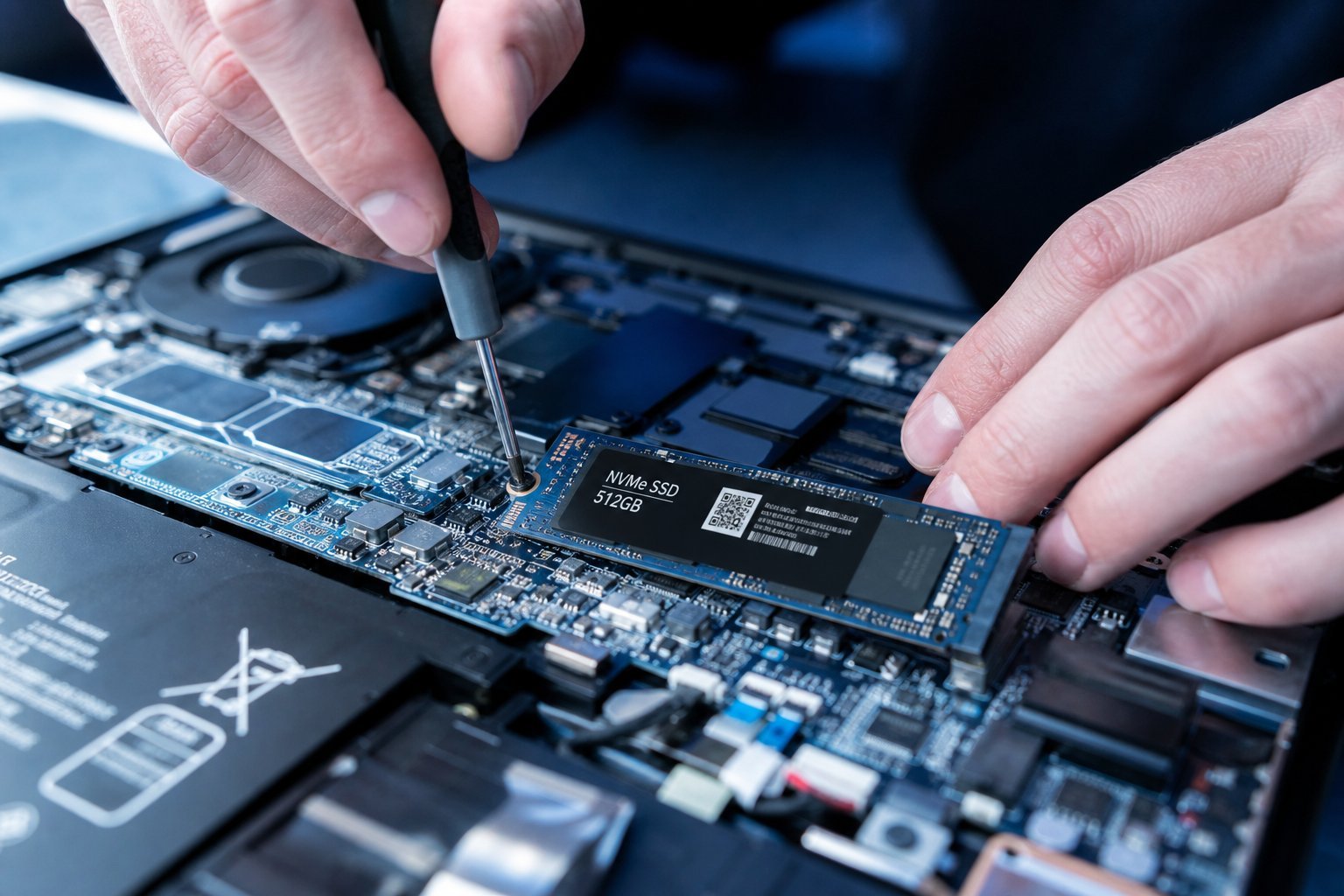
- SSD (solid-state drive): fast, no moving parts, loads everything instantly. This is what you want.
- HDD (hard disk drive): slow, mechanical, the old technology. Avoid it as the main drive.
The rule: get an SSD, not an HDD. A laptop with an SSD boots in seconds and feels snappy; the same laptop with an HDD feels slow and sluggish. If you see a cheap laptop advertising a large "hard drive," check that it's an SSD.
How much storage do you need? For most people, 256 GB to 512 GB is plenty. If you store lots of photos, videos or games, go for 1 TB.
⚠️ Don't buy an HDD laptop
If a laptop lists its storage as a "hard drive" or "HDD," keep looking. The SSD vs. HDD difference is bigger than almost any other spec — a fast SSD makes a modest laptop feel great, while a slow HDD makes a powerful laptop feel terrible.
Step 5: Choose your operating system
The operating system is the software that runs everything. Your main choices are Windows, macOS, and Chromebooks (ChromeOS).
- Windows — the most common and flexible. Runs the widest range of software and games, and comes on laptops from every manufacturer at every price.
- macOS (Apple MacBooks) — beautifully built, excellent screens, great battery life, and seamless integration with iPhones. Premium price, but many love the experience.
- ChromeOS (Chromebooks) — lightweight, fast and cheap. Best for people who mainly use a web browser (Google Docs, Gmail, streaming). Not ideal for heavy software or gaming.
Your choice depends on your existing devices and software needs. If you need specific Windows software or want to play PC games, choose Windows. If you're deep in the Apple ecosystem, a MacBook fits. If you just browse and do documents, a Chromebook is a budget-friendly gem.
Step 6: Match a budget
Now let's put it all together with realistic budgets. Prices vary by region, but here's a rough guide:
| Budget | What you get | Best for |
|---|---|---|
| Under ~$400 | Basic Chromebook or entry Windows | Light browsing, students, second laptops |
| ~$400–$700 | Solid everyday laptops, 8–16GB RAM, SSD | Most everyday users & students |
| ~$700–$1,200 | Great all-rounders, better screens, 16GB RAM | Professionals, long-term buyers |
| ~$1,200+ | Premium laptops, MacBooks, creators | Creative pros, power users |
Here's the encouraging truth: for most everyday and student use, a laptop in the $500–$800 range is more than enough. You don't need a $1,500 machine to browse the web and write documents. Spend more only if you have a specific need for power.
📌 Your 3-step shortcut
1) Decide your use case (everyday, student, creator, gamer). 2) Choose 13–14 inch for portability or 15-inch for a desk. 3) Prioritize 16 GB RAM, an SSD, and a good screen. Match your budget to that combination — and you'll buy the right laptop without ever getting lost in specs again.