Here's a question nobody likes to think about: what would you do if your computer died today? Not "I'd get a new one" — but what about your photos, your documents, your tax files, your family videos? If your answer is "I'm not sure," you're not alone. Most people have no backup at all, right up until the day they desperately wish they did.
Here's the reassuring truth: backing up is easy, mostly automatic, and once it's set up you never have to think about it again. This guide explains the simple "3-2-1" method, shows you exactly how to set it up on your devices, and helps you protect your digital life in under an hour.
What we'll cover
Why you need a backup The 3-2-1 rule, explained What to back up How to set it up on your devices Test & maintain your backupWhy you need a backup
Computers fail. Phones get lost or stolen. Hard drives wear out. Ransomware locks files. Water spills, laptops get dropped, and software updates occasionally go wrong. The question isn't whether something will happen — it's when.
The consequences of no backup are the ones you can't undo: years of family photos gone, work documents lost, memories that simply can't be recreated. A backup is cheap insurance against the most expensive kind of loss.
The uncomfortable truth: "I'll back up later" never happens. The only backup that works is the one that's set up automatically, before you need it. Let's make that happen.
The 3-2-1 rule, explained
The industry-standard approach to backups is called the 3-2-1 rule. It's simple and it protects you against almost every scenario:
- 3 copies of your important data (your working copy + 2 backups).
- 2 different types of storage (e.g., cloud + an external drive).
- 1 copy stored off-site (in a different physical location).
Why so thorough? The 3-2-1 rule protects you from every common disaster: a hard drive dying, a ransomware attack, a house fire, a stolen laptop, or a cloud account problem. No single backup method covers everything, but together they do.
What to back up
Not everything needs backing up — you don't need three copies of your game installs or movies you can re-download. Focus on the irreplaceable stuff:
- Photos and videos — especially family and personal ones.
- Documents — work files, schoolwork, contracts, resumes.
- Financial files — tax returns, statements, receipts.
- Contacts and messages — though these often back up via your phone.
- Bookmarks and passwords — your browser and password manager can sync these.
A good rule: if it would be painful to lose, back it up. Things you can easily re-download (apps, music you bought) don't need the same treatment.
How to set it up on your devices
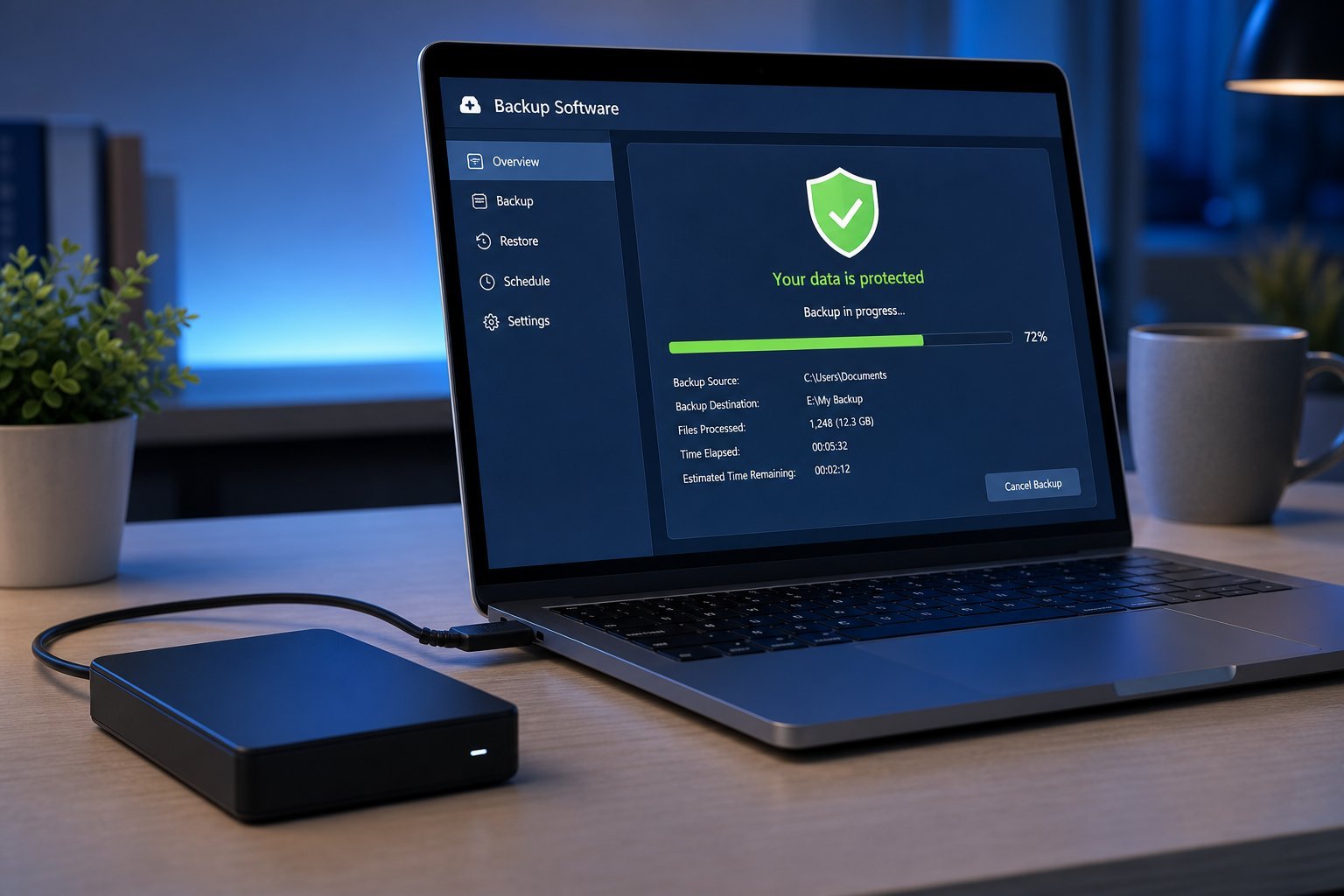
Now let's make it real. Here's a practical setup that follows the 3-2-1 rule with minimal effort:
That's the whole setup. Cloud backup runs automatically in the background, and the external drive backs up periodically. Once it's configured, it takes care of itself.
Test & maintain your backup
A backup you've never tested isn't a backup — it's a wish. Here's how to keep yours trustworthy:
Testing takes five minutes and gives you genuine peace of mind that your safety net actually works.
📌 Bottom line
A backup protects the irreplaceable — photos, documents, memories — from the inevitable day a device fails. Follow the 3-2-1 rule: 3 copies, 2 media types, 1 off-site. Enable automatic cloud backup, add a scheduled external drive backup, and keep the drive disconnected between runs. Test it once and check it a few times a year. Set it up in under an hour, and you'll never dread losing your files again.