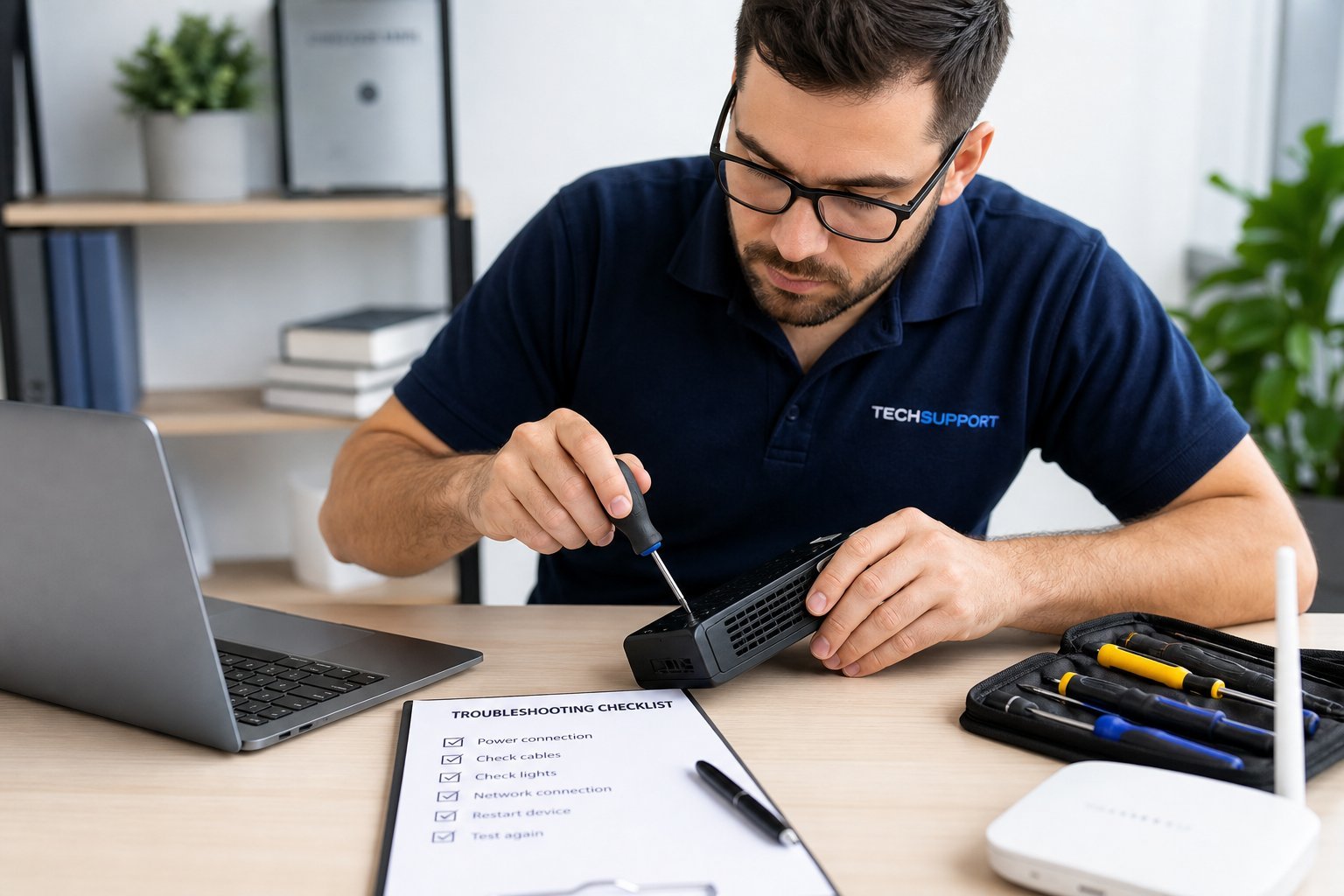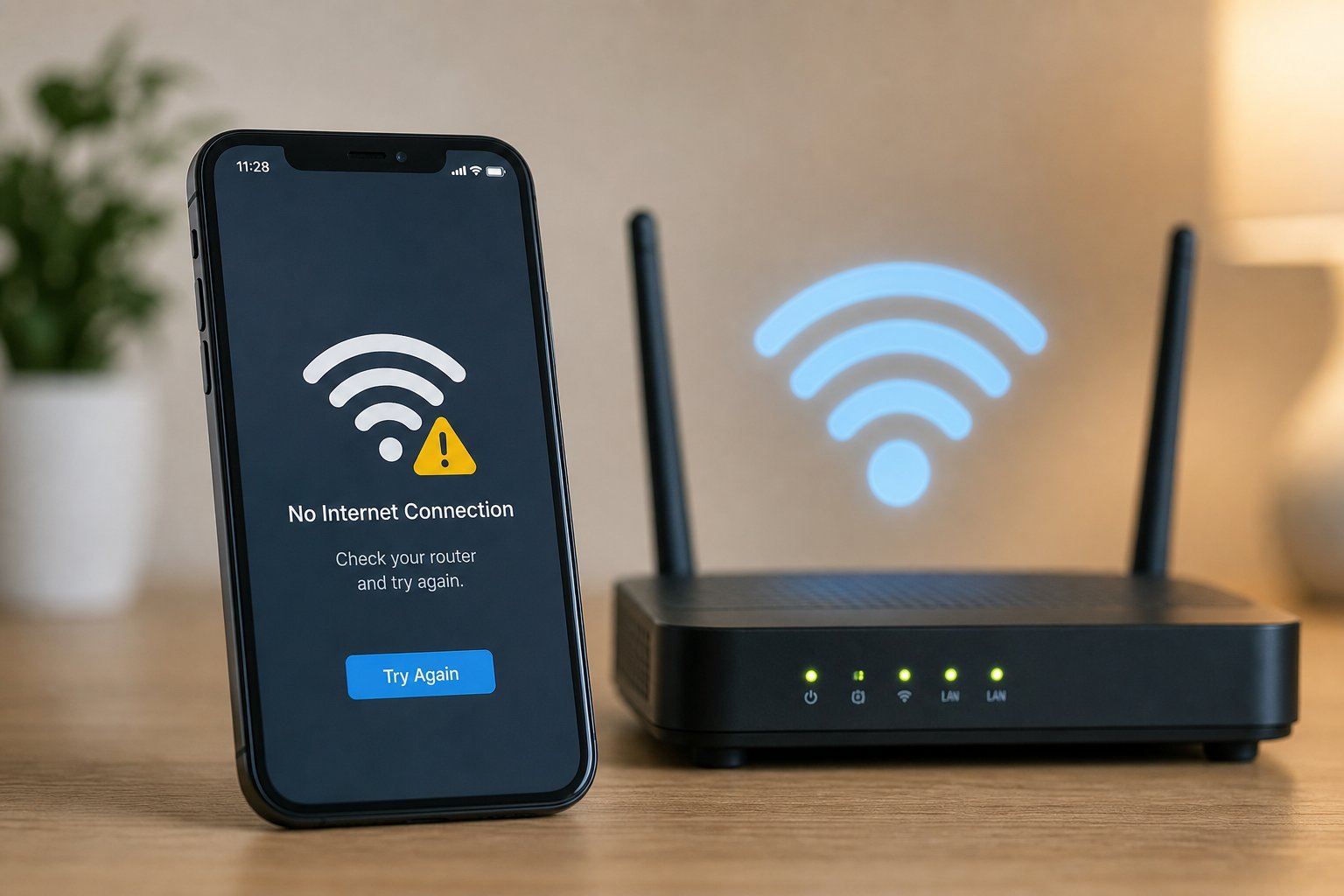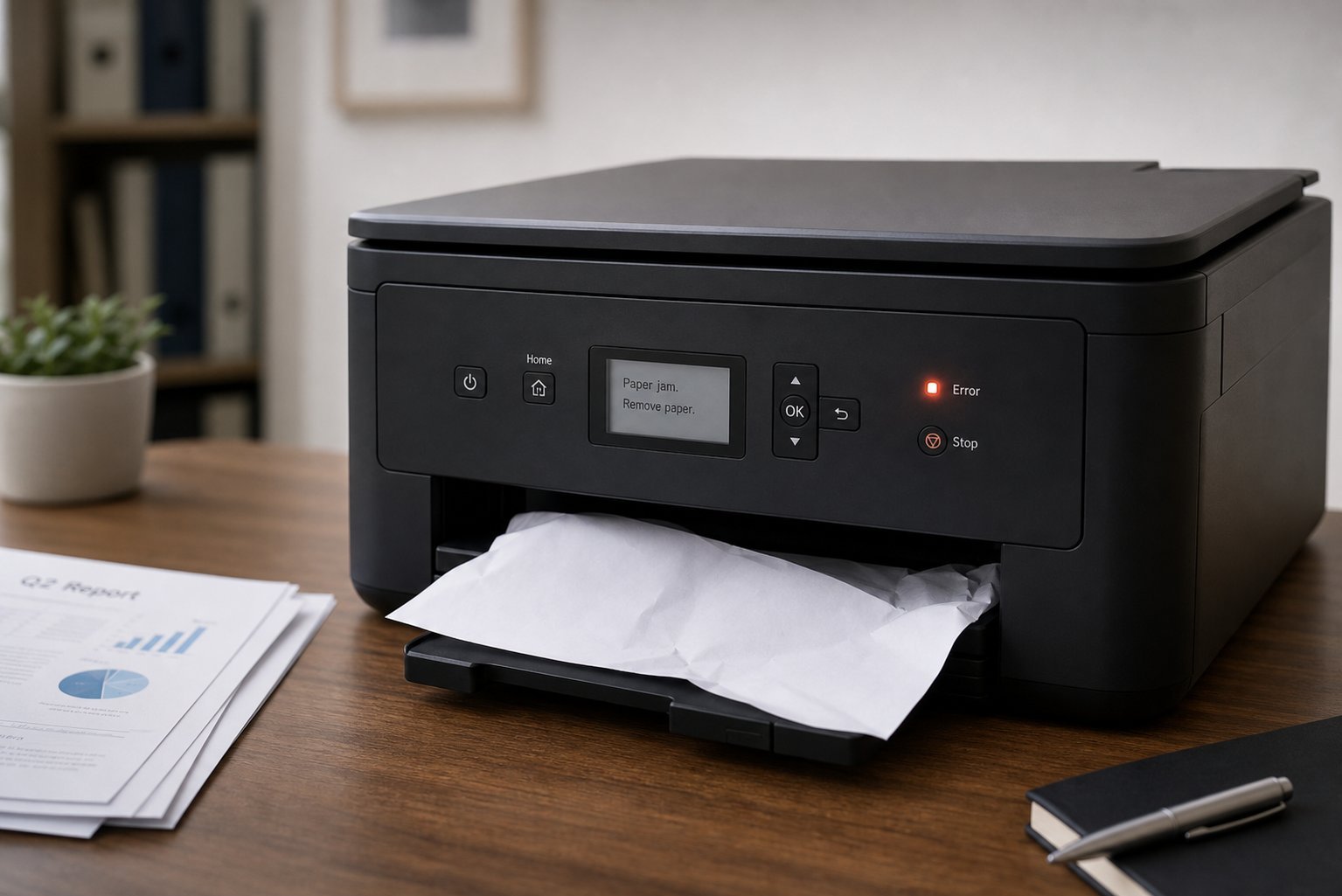
Printers have a reputation for being finicky. "It won't print!" is a universal frustration — a document won't print, the printer says "offline," or it jams at the worst moment. But here's the good news: most printer problems are common, predictable and fixable yourself.
This guide covers the most common printer issues and how to fix them — a practical printer troubleshooting playbook.
What we'll cover
Printer won't print Printer shows offline Paper jams & quality Wireless printer issuesPrinter won't print
If your printer won't print, try these in order:
Most "won't print" issues are a stuck print queue, a connection problem, or a basic issue like no paper. Check these in order.
Printer shows offline
"Printer is offline" is one of the most common messages. Here's how to fix it:
Offline status is usually a connection or driver issue. Set the printer as default, clear the offline flag, check the connection and restart.
Paper jams & quality
Paper jams and poor print quality are common:
Jams and quality issues are usually paper loading, low ink/toner or cleanliness. Address those first.
Wireless printer issues
Wireless printers add Wi-Fi to the mix. Common fixes:
✨ Try wired if wireless keeps failing
If your wireless printer keeps dropping, connect it via USB instead. Wired is more reliable and eliminates Wi-Fi issues. Many people switch to wired for a printer that sits near their computer — it's more dependable (see our ethernet guide for the wired vs wireless logic).
📌 Bottom line
Most printer problems are fixable. For "won't print," check the basics, connection, print queue and correct printer, then restart. For "offline," set it as default, clear the offline flag and check the connection. For jams and quality, fix paper loading, low ink/toner and cleanliness. For wireless issues, ensure the same network, reconnect, and keep them close — or switch to USB. A little systematic troubleshooting fixes most printer frustrations.