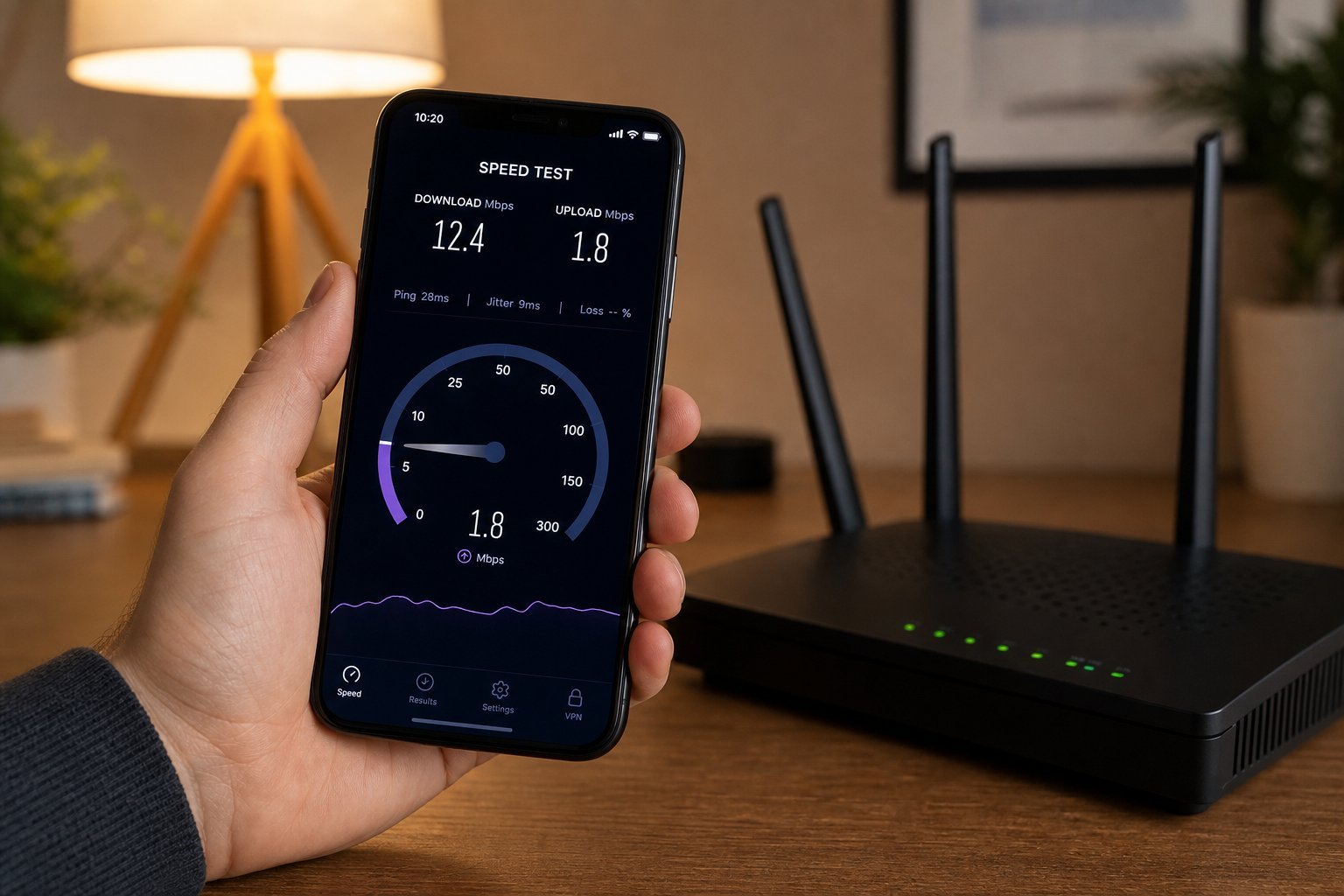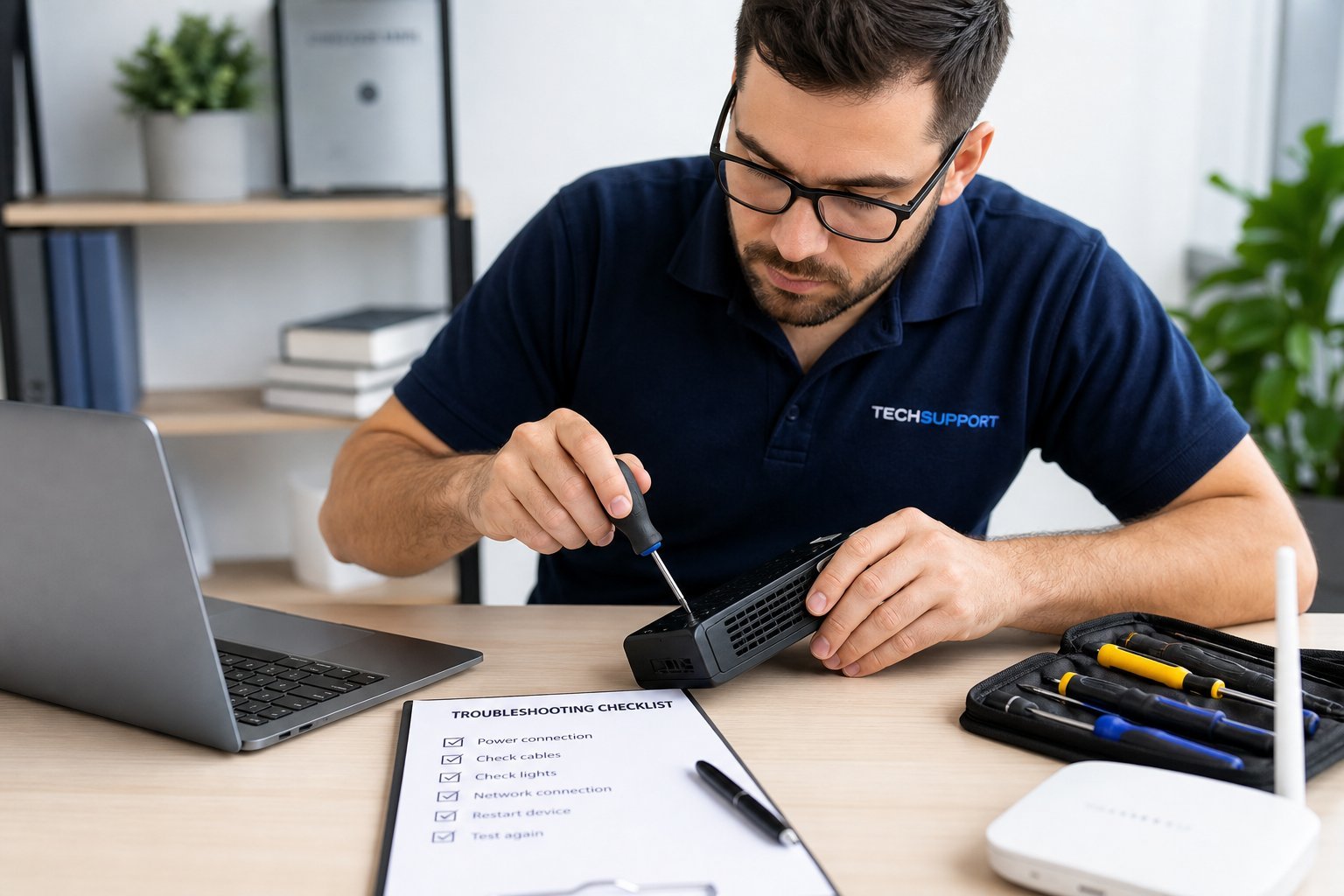
Your Wi-Fi won't connect. Your printer won't print. Your app keeps crashing. Before you call support or throw money at the problem, know this: a huge percentage of tech problems are fixed by a few simple, logical steps. And you can do most of them yourself.
This guide teaches you a simple troubleshooting mindset and the go-to fixes that solve the majority of everyday tech problems — without needing to be a technician.
What we'll cover
The troubleshooting mindset The restart rule Check the basics Update & check When to get helpThe troubleshooting mindset
Good troubleshooting isn't about knowing everything — it's about thinking logically and narrowing things down. Here's the mindset:
This logical approach solves most problems. You're not guessing randomly — you're systematically narrowing down the cause.
The restart rule
It's a cliché because it works: restarting fixes an astonishing number of tech problems. Before anything else, restart the device that's misbehaving.
💡 The restart rule
Restarting clears memory, resets connections and fixes glitches. It's the single most effective troubleshooting step — and it's free. Do it before anything more complicated. Most tech support calls start (and often end) with "have you tried restarting it?"
Check the basics
Many "mysterious" problems are actually basic oversights. Check these before diving deeper:
- Is it powered on? Simple, but overlooked — check the power and cables.
- Is it connected? Check Wi-Fi, cables and Bluetooth connections.
- Is it plugged in / charged? A dead battery or unplugged cable explains a lot.
- Is the right input selected? On a TV/monitor, wrong input looks like a broken device.
- Is the cable bad or loose? Reseat cables; try a different one if possible.
These seem too simple, but they resolve a surprising number of "it stopped working" problems. Always rule out the obvious first.
Update & check
If the basics are fine, check for software issues:
Updates and reinstalls fix many software problems. And a quick search can save you hours by revealing a known solution.
When to get help
Not every problem is DIY — and recognizing that saves time. Get help if:
- You've tried the basics (restart, connections, updates) and it's still broken.
- It's a hardware issue — physical damage, unusual noises, or a device that won't power on.
- It involves an account or service — login problems, billing, or account access are often best handled by the provider.
- You're uncomfortable or at risk of making it worse.
There's no shame in getting help. The point of troubleshooting is to fix what you reasonably can — and to know when to stop and call in support rather than making things worse.
✨ Google it first
Before calling support, search the web for your problem. Chances are someone else had it and posted a fix. "Device model + problem" usually surfaces a solution or reveals it's a known issue. It's free, fast, and often saves a support call.
📌 Bottom line
Most tech problems are fixable with a logical approach. Stay calm, identify the problem, isolate the cause and change one thing at a time. Start with the restart rule (it works more often than you'd think), check the basics (power, connections, input), and update or reinstall software. A quick web search often reveals known fixes. And know when to get help — troubleshooting is about fixing what you can and stopping before you make things worse.