๐Ÿ HighTechBee โ€” practical tech help, in plain English.
โœ๏ธ Write for us ๐Ÿ“ฉ Contact โ˜€๏ธ โ— Updated daily

Stay Connected While Traveling: Data, Hotspots & Wi-Fi

LB
Liam BrooksConsumer tech analyst ยท HighTechBee Editorial
Stay Connected While Traveling: Data, Hotspots & Wi-Fi

Traveling with devices raises a practical challenge: staying connected. Between airports, hotels and unfamiliar places, getting reliable internet for your phone and laptop can be tricky. But with a little planning, you can stay connected while traveling โ€” without burning through your data or falling for expensive roaming charges.

This guide covers how to stay connected when traveling โ€” mobile data, hotspots and Wi-Fi โ€” safely and affordably.

Mobile data while traveling

Here's how to manage mobile data when you travel:

  • Check roaming charges. Roaming can be very expensive โ€” know what your plan charges abroad before you travel.
  • Consider an eSIM or local SIM. For international travel, an eSIM or a local SIM is often far cheaper than roaming (see our mobile guide).
  • Buy a travel data plan. Many providers offer affordable international data plans.
  • Use Wi-Fi where available. Connect to free Wi-Fi to save data (see below).
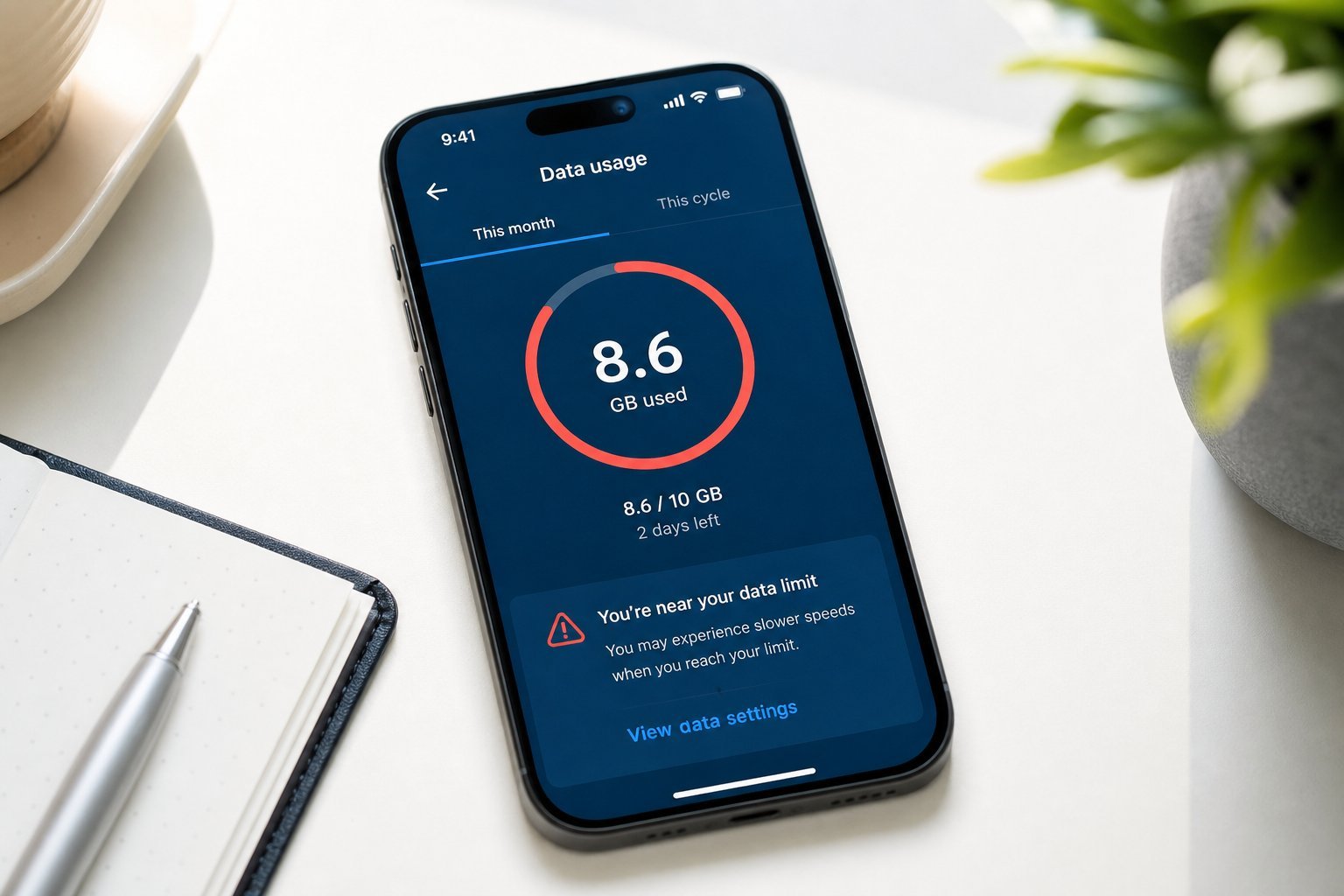
  • The biggest travel-data mistake is unknowingly racking up huge roaming charges. Check your plan and consider an eSIM or local SIM for cheaper international data.

    Using your phone as a hotspot

    Your phone's hotspot can provide internet to your laptop while traveling:

  • Turn on the hotspot to share your phone's data (see our hotspot guide).
  • Watch your data. A hotspot uses your mobile data โ€” be mindful of limits and roaming.
  • Use it for essential tasks. Keep hotspot use light (email, browsing) unless you have plenty of data.
  • Set a strong password on your hotspot.
  • A hotspot is a lifesaver when there's no Wi-Fi, but it uses your mobile data โ€” check your plan and keep usage sensible while traveling.

    Hotel & travel Wi-Fi

    Hotel and public Wi-Fi can be unreliable and insecure. Here's how to use it well:

  • Use it for light browsing. Hotel Wi-Fi is often slow โ€” don't expect to stream or do heavy work.
  • Verify the network. Ask for the official network name to avoid fake networks (see our public Wi-Fi guide).
  • Use a VPN. Especially important on hotel and public Wi-Fi (see our guide).
  • Avoid sensitive tasks. Don't do banking on hotel Wi-Fi without a VPN.
  • Have a backup. If the Wi-Fi is bad, fall back to your hotspot.
  • Hotel Wi-Fi is convenient but often slow and insecure. Use it for light tasks, verify the network, and use a VPN for anything sensitive.

    Stay safe abroad

    Traveling adds security considerations:

  • Use a VPN. On unfamiliar networks, a VPN encrypts your connection (see our VPN guide).
  • Lock your devices. A strong lock protects your devices if lost or stolen (see our checklist).
  • Enable find-my-device. So you can locate or wipe a lost phone.
  • Back up before you go. If your device is lost, you don't lose your data (see our backup guide).
  • Be careful with public computers. Don't log into important accounts on shared computers.
  • โœจ The travel prep checklist

    Before you travel: check your data/roaming plan, consider an eSIM or local SIM, download offline maps, back up your devices, enable find-my-device, and install a VPN. A few minutes of prep keeps you connected, safe and stress-free while traveling.

    ๐Ÿ“Œ Bottom line

    Stay connected while traveling by managing your mobile data โ€” check roaming charges, consider an eSIM or local SIM for international data, and use Wi-Fi where available. Use your phone's hotspot for a laptop, but watch data usage. Hotel Wi-Fi is convenient but slow and insecure โ€” use a VPN and avoid sensitive tasks. Prepare before you go: check your plan, back up, enable find-my-device, and install a VPN. A little planning keeps you connected and safe abroad.

    #travel#mobile-data#hotspot#roaming#wifi
    LB

    Liam Brooks

    Consumer tech analyst

    Part of the HighTechBee editorial team. Liam Brooks writes practical, beginner-friendly tech guides that solve real everyday problems.