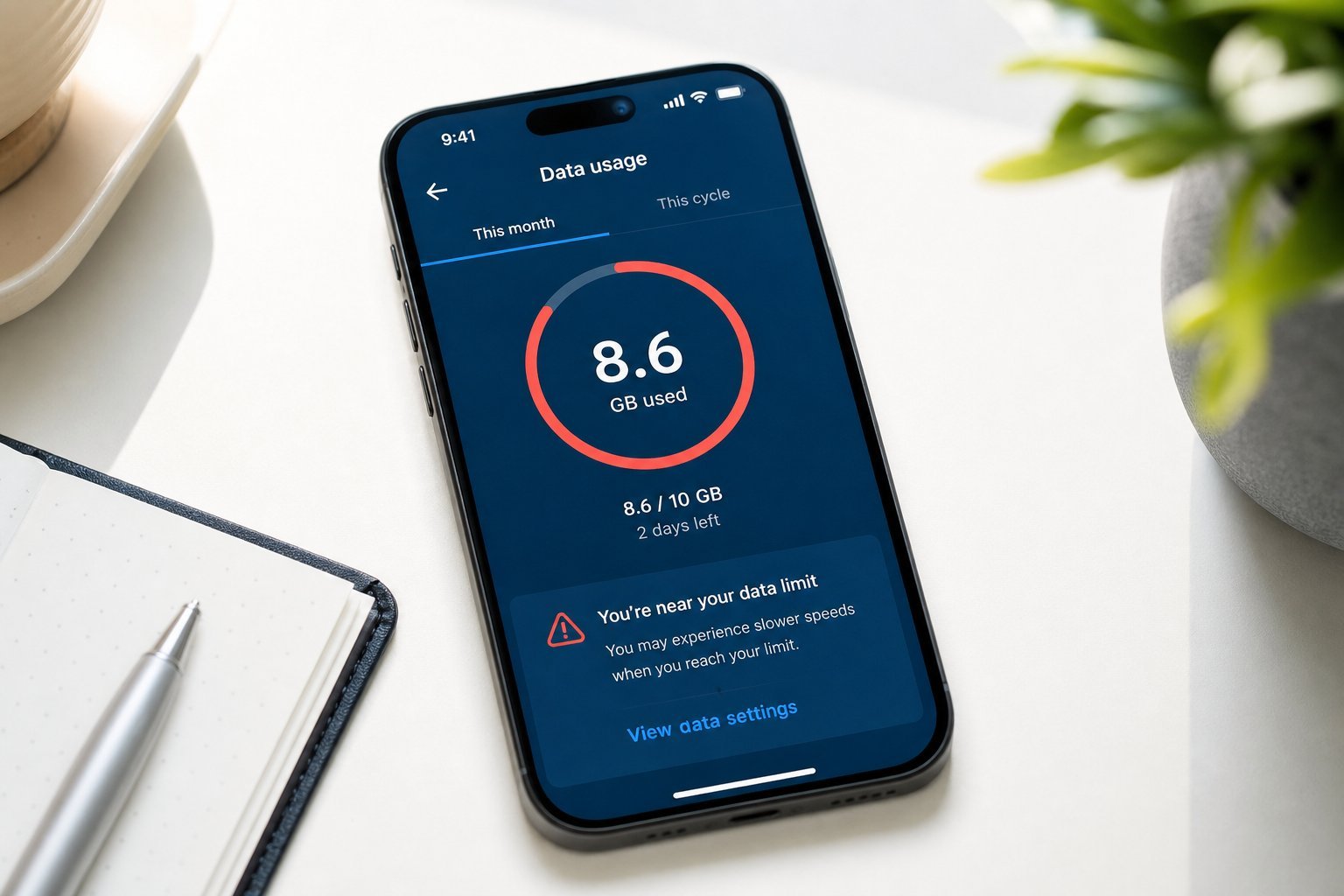
You've seen the warnings: "You've used 80% of your data." Or your internet goes frustratingly slow right when you need it. Mobile data is a monthly budget, and running out is annoying. The good news: a few habits help you stay within your data limit, and phone hotspots can rescue you when you need internet away from home.
This guide covers how to manage your mobile data usage and how to use your phone as a hotspot when you need it.
Track your data usage
You can't manage what you don't measure. Here's how to keep tabs on your data:
Knowing your limit and which apps eat it is the first step to staying under it.
How to save data
Here are the most effective ways to cut your data usage:
💡 The biggest saver
Video streaming is almost always the #1 data consumer. Setting streaming apps to lower quality on mobile data (and using Wi-Fi for high-quality streaming) is the single most effective way to cut data usage.
Using your phone as a hotspot
Your phone can share its internet with other devices through a mobile hotspot — useful when there's no Wi-Fi and you need your laptop or tablet online.
Here's how to use it:
⚠️ Hotspots use your mobile data
When you use your phone as a hotspot, connected devices use your mobile data. Streaming video or downloading large files through a hotspot can burn through your data quickly. Check your plan and keep an eye on usage.
Hotspots are a lifesaver when you're away from Wi-Fi, but use them for light tasks (email, browsing, a quick call) rather than heavy streaming unless you have plenty of data.
📌 Bottom line
Manage your mobile data by tracking usage, knowing your plan's limit, and seeing which apps use the most. Save data by connecting to Wi-Fi, lowering streaming quality (the biggest saver), downloading on Wi-Fi, and using data-saver mode. When you need internet away from home, use your phone's hotspot — but remember it uses your mobile data, so keep connected tasks light and watch your usage. A few habits keep you under your limit and never caught short.