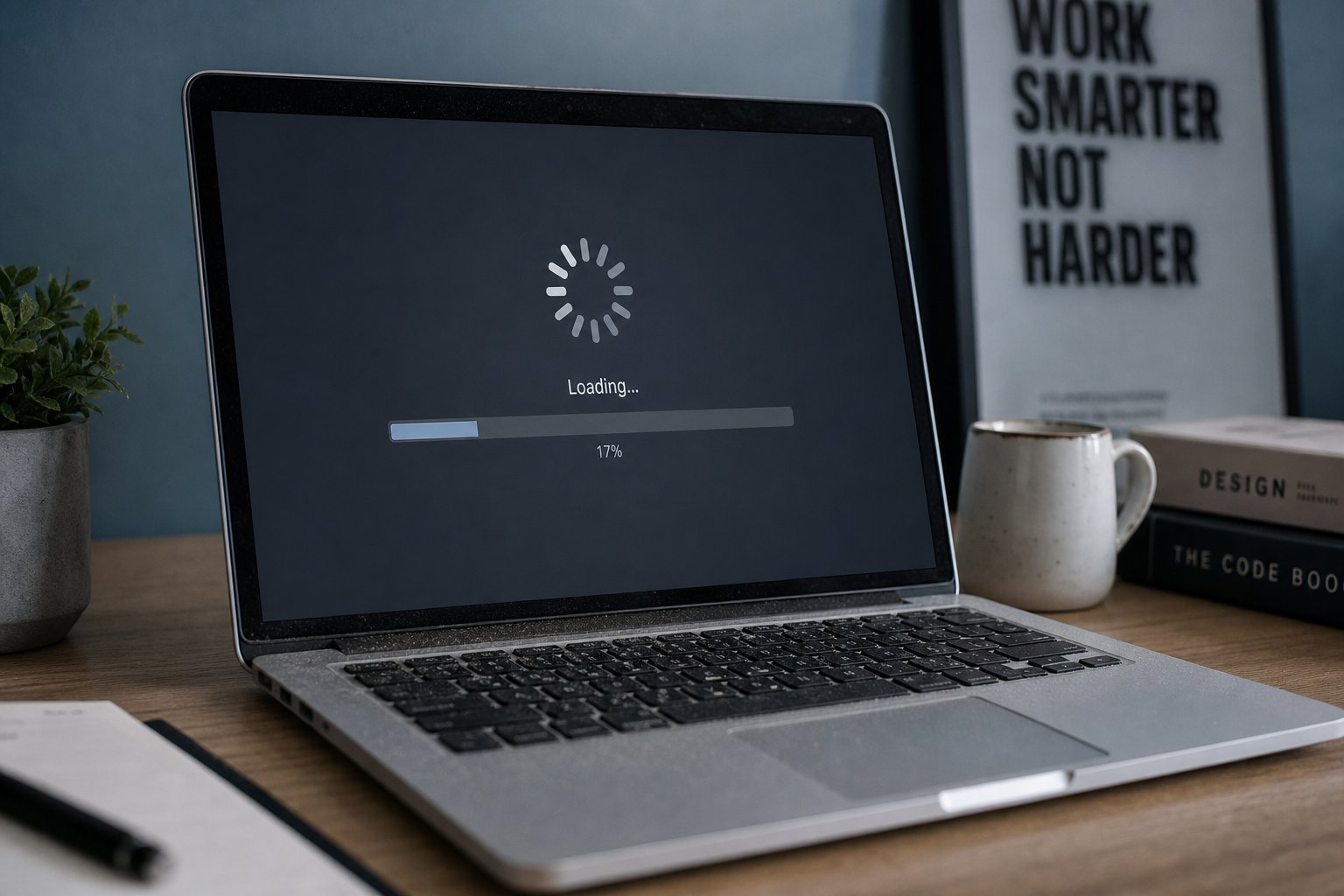
If your computer takes forever to start up, apps load slowly, and files seem to crawl, there's a very strong chance your storage drive is the bottleneck — not your processor, and not your RAM. And the fix is one of the most satisfying upgrades in all of computing: swapping your old hard drive for a solid-state drive (SSD).
This guide explains exactly what an SSD is, why it's such a dramatic upgrade, how to choose the right one, and what the installation involves — so you can decide whether to do it yourself or hand it to a professional.
What we'll cover
Why SSDs are such a big deal The types of SSDs (and which to buy) How to choose the right capacity Prepare: back up your data Installation: DIY or professional? After the upgrade: what to expectWhy SSDs are such a big deal
Let's talk about the difference between the two drive technologies, because it explains everything.
An HDD (hard disk drive) stores data on spinning magnetic discs, with a tiny mechanical arm that physically moves to read and write data. This is clever, but it's slow, and it has a hard physical limit: a spinning disc can only spin so fast, and a mechanical arm can only move so quickly.
An SSD (solid-state drive) stores data on memory chips with no moving parts at all. Data is read electronically, the way RAM works. This is many times faster, more reliable, more durable, and quieter.
This is why an SSD makes an old computer feel new: the boot time alone can drop from two minutes to twenty seconds, apps open almost instantly, and file transfers complete in a fraction of the time.
💡 The #1 speed upgrade
If you can only make one upgrade to a slow computer, make it an SSD. It produces a bigger, more noticeable improvement than almost anything else you can do — more than extra RAM in many cases.
The types of SSDs (and which to buy)
Not all SSDs are the same, and buying the wrong kind can be frustrating. The two main types differ in how they connect to your computer:
- 2.5-inch SATA SSDs — these look like small flat boxes (the same size as a laptop hard drive) and connect with a standard SATA cable. They're the easiest to install in most older laptops and desktops, and they're affordable. Speed is a huge improvement over HDD, though not the fastest SSD option.
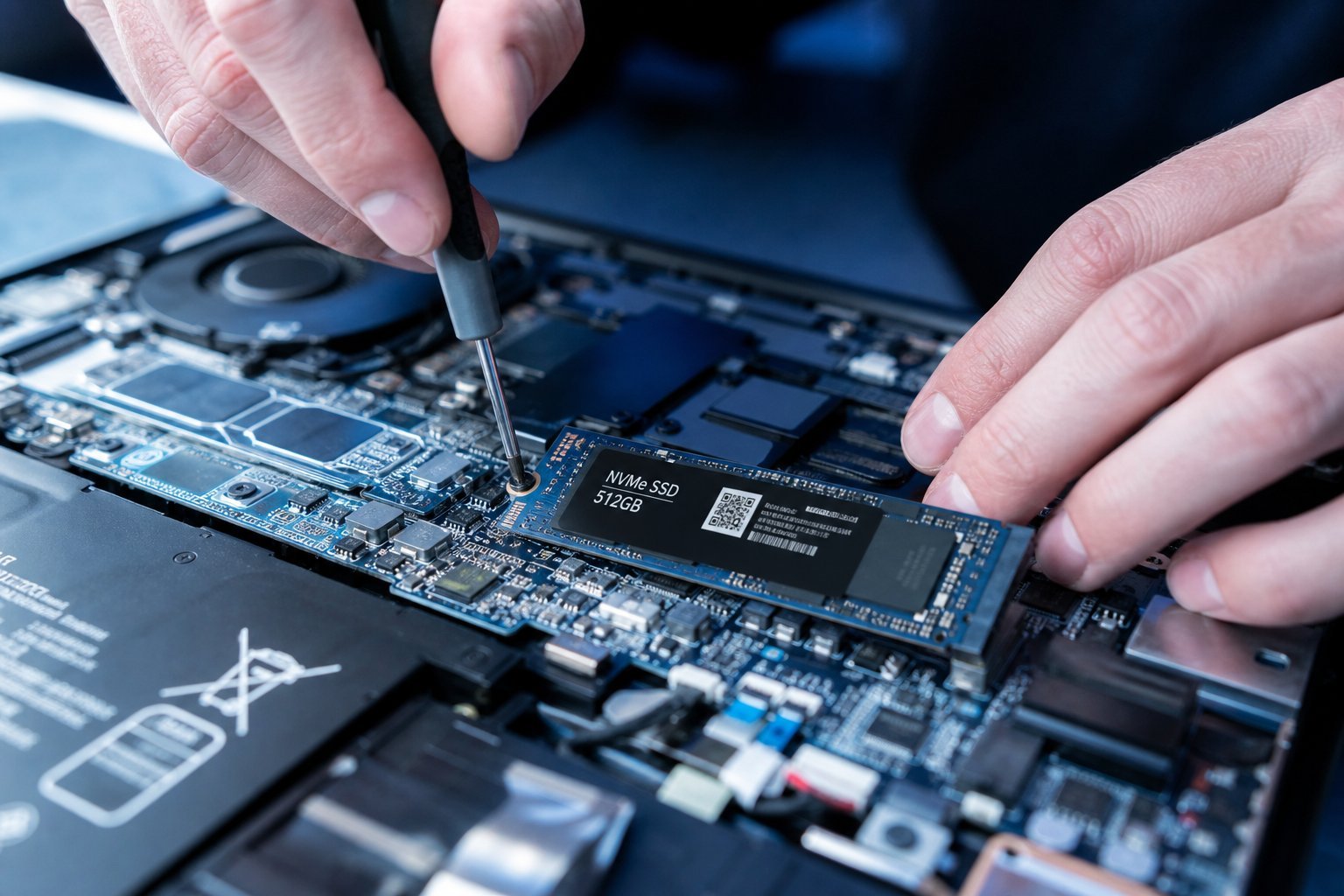
- M.2 NVMe SSDs — these are small, flat sticks that plug directly into a slot on the motherboard. They're significantly faster than SATA SSDs and are standard in modern laptops and desktops. The catch: your computer needs an M.2 slot, which older machines may not have.
Which should you buy? It depends entirely on what your computer supports:
⚠️ Match the slot, don't guess
An M.2 SSD won't fit in a SATA-only machine, and vice versa. Check your computer's specs before buying, or ask a professional to confirm compatibility. Buying the wrong type means a wasted purchase.
How to choose the right capacity
Capacity is about how much data the drive holds, and it should match your needs:
- 256 GB — enough for a basic system with documents and a few programs. Tight for lots of media.
- 512 GB — the sweet spot for most people. Comfortable for a system plus apps, photos and everyday files.
- 1 TB (1000 GB) — for gamers, video editors, or anyone with large files. Plenty of room.
- 2 TB+ — for heavy creators and data hoarders.
If you're replacing an old 1 TB hard drive with a smaller SSD, don't worry — a smaller SSD plus a cheap external drive (or cloud storage) for bulk files is a common and smart combination. Your system stays fast, and your old files live elsewhere.
Prepare: back up your data
Before any hardware change, back up your files. This is non-negotiable, even though the process usually goes smoothly. You have a couple of options for handling your existing data:
- Start fresh: Install your operating system on the new SSD and copy over your important files from a backup. This is the cleanest approach and leaves you with a tidy, fast system.
- Clone the old drive: Use disk-cloning software to copy everything — operating system, apps and files — from the old drive to the new SSD. This keeps your system exactly as it is, just faster. It's a popular choice because you don't have to reinstall anything.
Either way, back up your most important files to an external drive or cloud storage first. A backup is your safety net.
Installation: DIY or professional?
Now the honest question: should you install it yourself? It depends on your comfort level and your device.
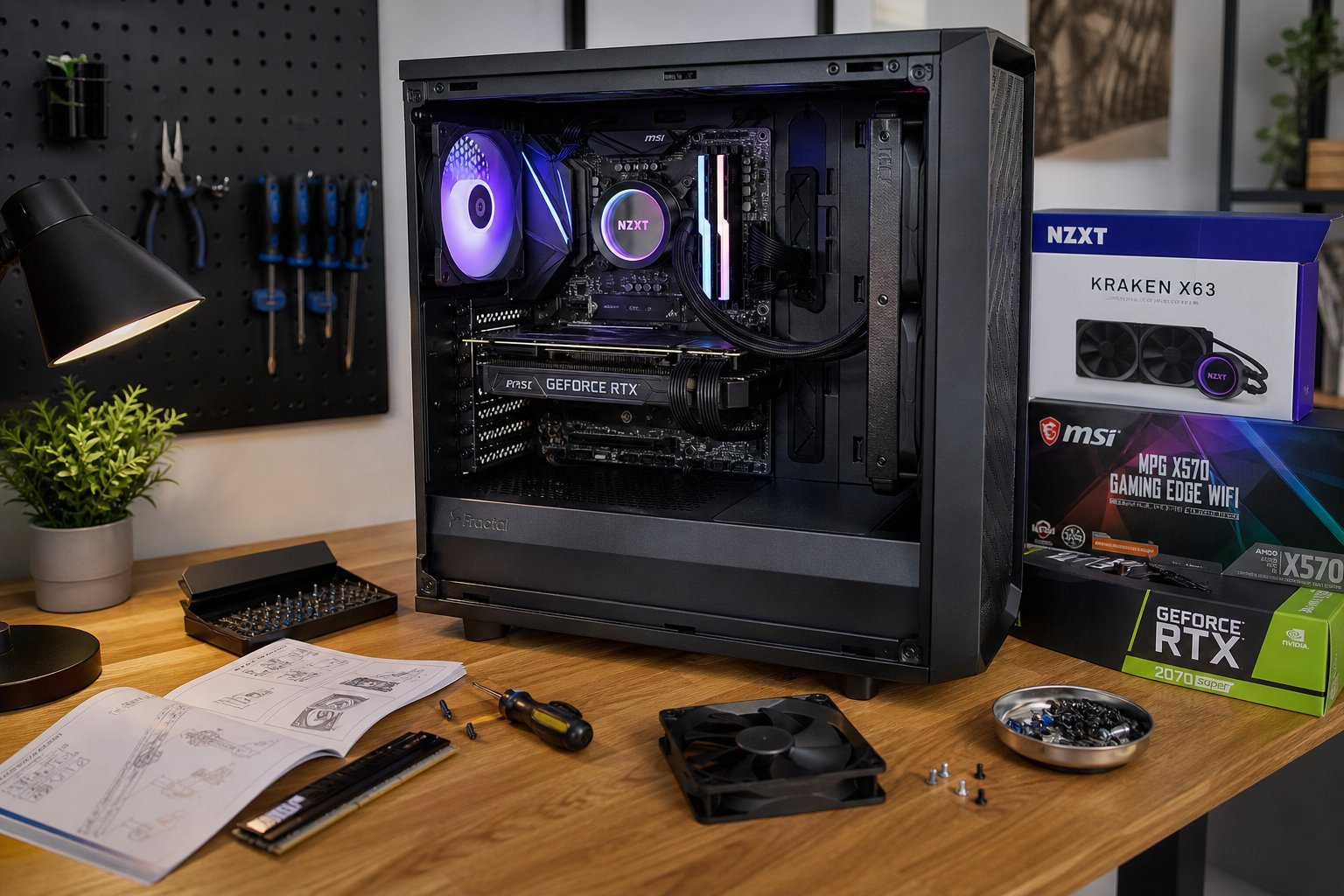
Desktops are generally easy. You open the case, plug in the drive, and close it up. Most desktop SSDs install in minutes with no special skills — just a screwdriver and some care.
Laptops vary widely. Some laptops have a simple access panel that makes the swap a 15-minute job. Others are glued shut or require removing the motherboard — not beginner territory.
MacBooks (especially modern ones) are the trickiest: many have storage soldered to the board and cannot be upgraded at all. Always confirm upgradability before buying an SSD for a Mac.
If you're not confident opening up your device, here's the good news: local repair shops install SSDs for a modest fee, and most will also transfer your data. Given how affordable SSDs have become, the total cost is often a fraction of what a new computer would cost — and it achieves a similar speed improvement.
✨ Leave it to the pros if unsure
There's no shame in paying for installation. A professional swap plus data migration is usually quick and guarantees the job is done safely — and it's still far cheaper than a new computer.
After the upgrade: what to expect
Once the SSD is in and your system is running from it, here's what you'll typically experience:
- Faster boot — from minutes down to seconds.
- Snappier apps — programs open almost instantly.
- Quieter operation — no more clicking or spinning from a hard drive.
- Better durability — no moving parts means less to break, especially in laptops that get moved around.
- Lower power use — SSDs draw less power, which can improve laptop battery life slightly.
Don't expect miracles on tasks that depend on the processor or RAM rather than storage — but for the everyday feel of a computer, an SSD is the most transformative upgrade you can make.
📌 Bottom line
An SSD replaces a slow mechanical drive with fast solid-state storage, and it's the single best way to breathe new life into an old computer. Check what type your machine supports, pick the right capacity, back up your data, and either do the swap or have a professional do it. The result is a computer that feels dramatically faster for a fraction of the cost of a new one.