You've probably seen the phrase "two-factor authentication" (2FA) — and maybe you've skipped it because it seemed like a hassle. Here's the honest pitch: 2FA is one of the single most effective things you can do to protect your accounts, and setting it up takes just a few minutes.
This guide explains what 2FA is, why it matters so much, the different types, and how to set it up on your most important accounts.
What 2FA is
Two-factor authentication adds a second step to logging in. Instead of just entering your password (one "factor" — something you know), you also prove you have something else (a second factor).
The three common "factors" are:
- Something you know — your password or PIN.
- Something you have — your phone, a security key, or a code-generating app.
- Something you are — your fingerprint or face.
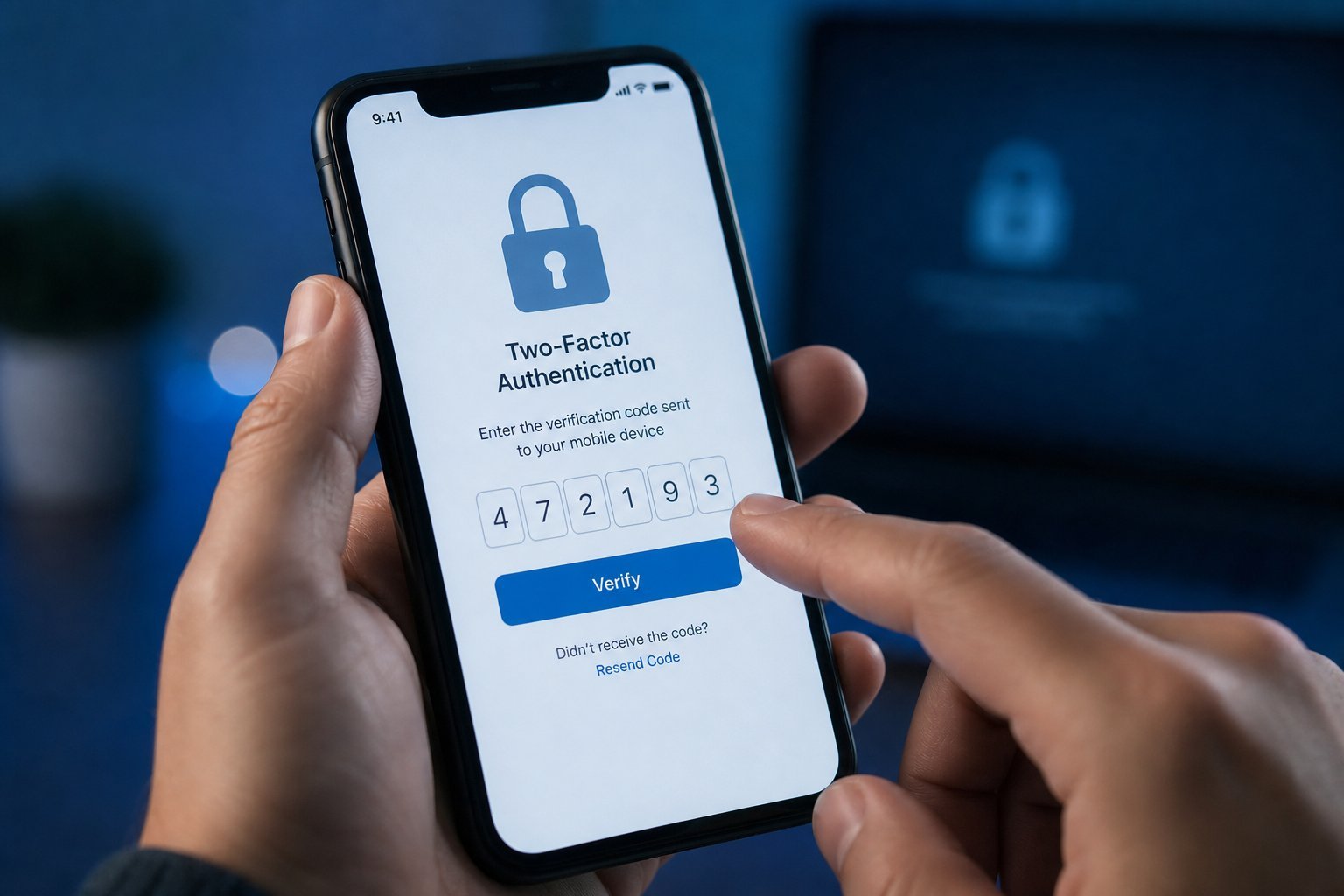
2FA combines two of these. The most common setup: your password (something you know) plus a code sent to your phone (something you have). So even if a hacker steals your password, they still can't get in without your phone.
Why it matters
Here's the key reason 2FA is so powerful: passwords get stolen all the time. Data breaches leak passwords constantly, and phishing tricks people into giving them up (see our phishing guide).
Without 2FA, a stolen password means the hacker has full access. With 2FA, the stolen password alone is useless — they'd also need your phone or code, which they don't have.
💡 The 2FA payoff
2FA is like a deadbolt on your door. A stolen password is a stolen key — but 2FA adds a lock the thief doesn't have the key to. It's the single most effective security upgrade for most people, especially on email and banking.
The types of 2FA
Not all 2FA is equal. Here's how the common types compare:
| Type | How it works | Security |
|---|---|---|
| SMS/text code | Code sent to your phone number | Good, but SMS can be intercepted |
| Authenticator app | App generates a code (Google Auth, etc.) | Better — no SMS interception |
| Push notification | Tap "approve" on your phone | Convenient, good |
| Security key | A physical USB key you plug in | Best, most phishing-resistant |
| Biometrics | Fingerprint/face | Good for phones |
✨ Prefer an authenticator app
When you can, use an authenticator app (like Google Authenticator, Microsoft Authenticator or a password manager's built-in) instead of SMS codes. It's more secure and works offline. But if SMS is all that's offered, use it anyway — it's far better than no 2FA.
How to set it up
Here's how to enable 2FA on your most important accounts:
⚠️ Save your backup codes
When you set up 2FA, the service usually gives you backup codes to use if you lose your phone. Save them somewhere safe (like a password manager). Without them, losing your phone could lock you out of your account.
Take 15–20 minutes to enable 2FA on your most important accounts. It's a small time investment with an outsized security payoff.
📌 Bottom line
Two-factor authentication adds a second step to logging in — typically your password plus a code from your phone — so a stolen password alone isn't enough to break in. It's one of the most effective security measures there is. Use an authenticator app when possible (SMS if that's all there is), prioritize email, banking and social media, and save your backup codes. Fifteen minutes of setup protects you against the most common way accounts get hacked.