WhatsApp holds years of messages, photos, voice notes and memories. Moving to a new phone is stressful partly because you don't want to lose those chats. But here's the good news: moving WhatsApp to a new phone is straightforward if you follow the right steps. The most common "I lost my chats" problems are almost always preventable.
This guide walks you through transferring WhatsApp to a new phone, step by step — whether you're going Android-to-Android, iPhone-to-iPhone, or switching platforms.
What we'll cover
Before you start: back up Android to Android iPhone to iPhone Cross-platform (Android ↔ iPhone)Before you start: back up
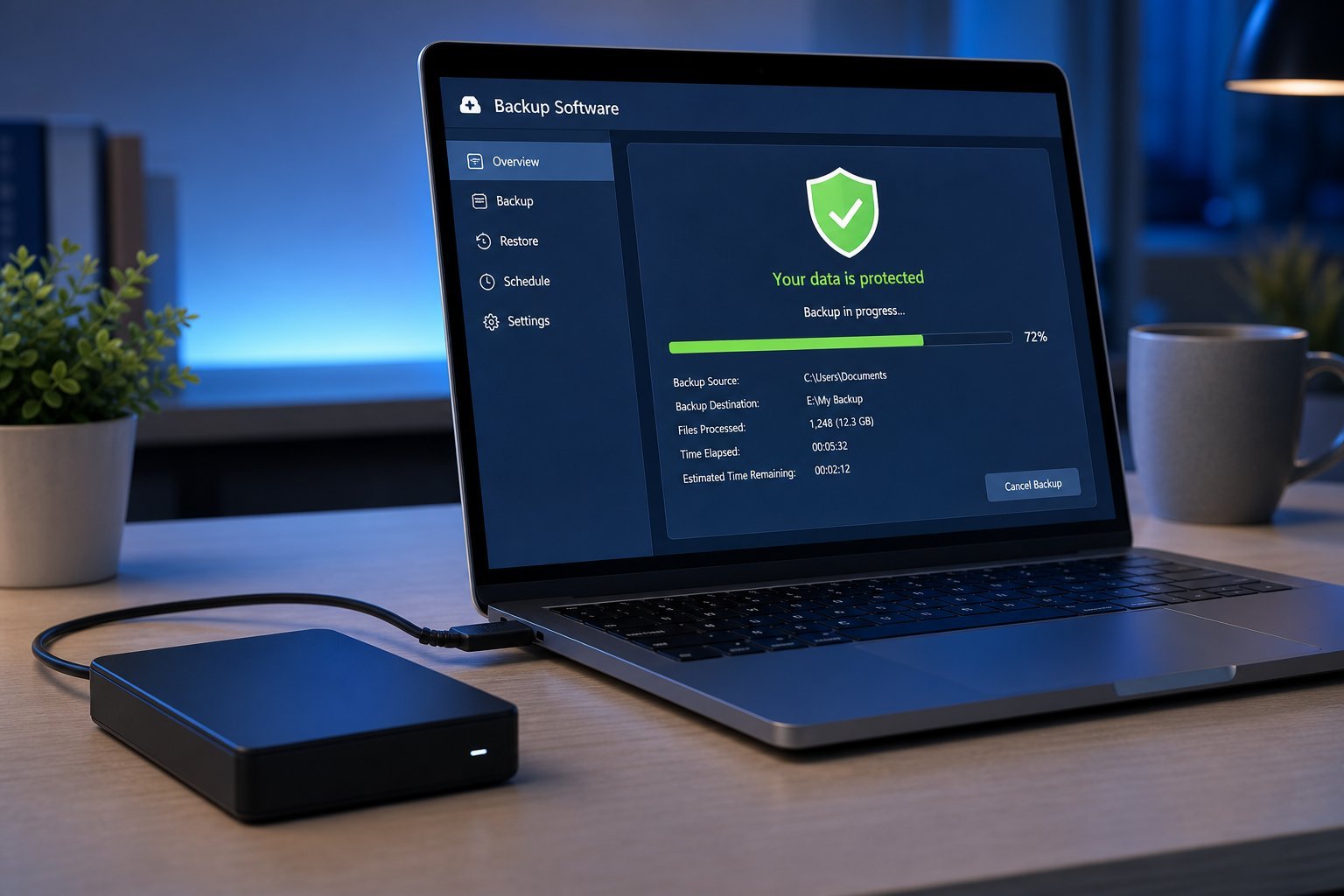
The golden rule of WhatsApp transfers: back up before you do anything. WhatsApp chats live on your device, so the backup is what carries them to the new phone.
💡 The backup rule
Back up before transferring, every time. The most common reason people lose WhatsApp chats is skipping the backup or not waiting for it to finish. A completed backup is your ticket to restoring everything on the new phone.
Android to Android
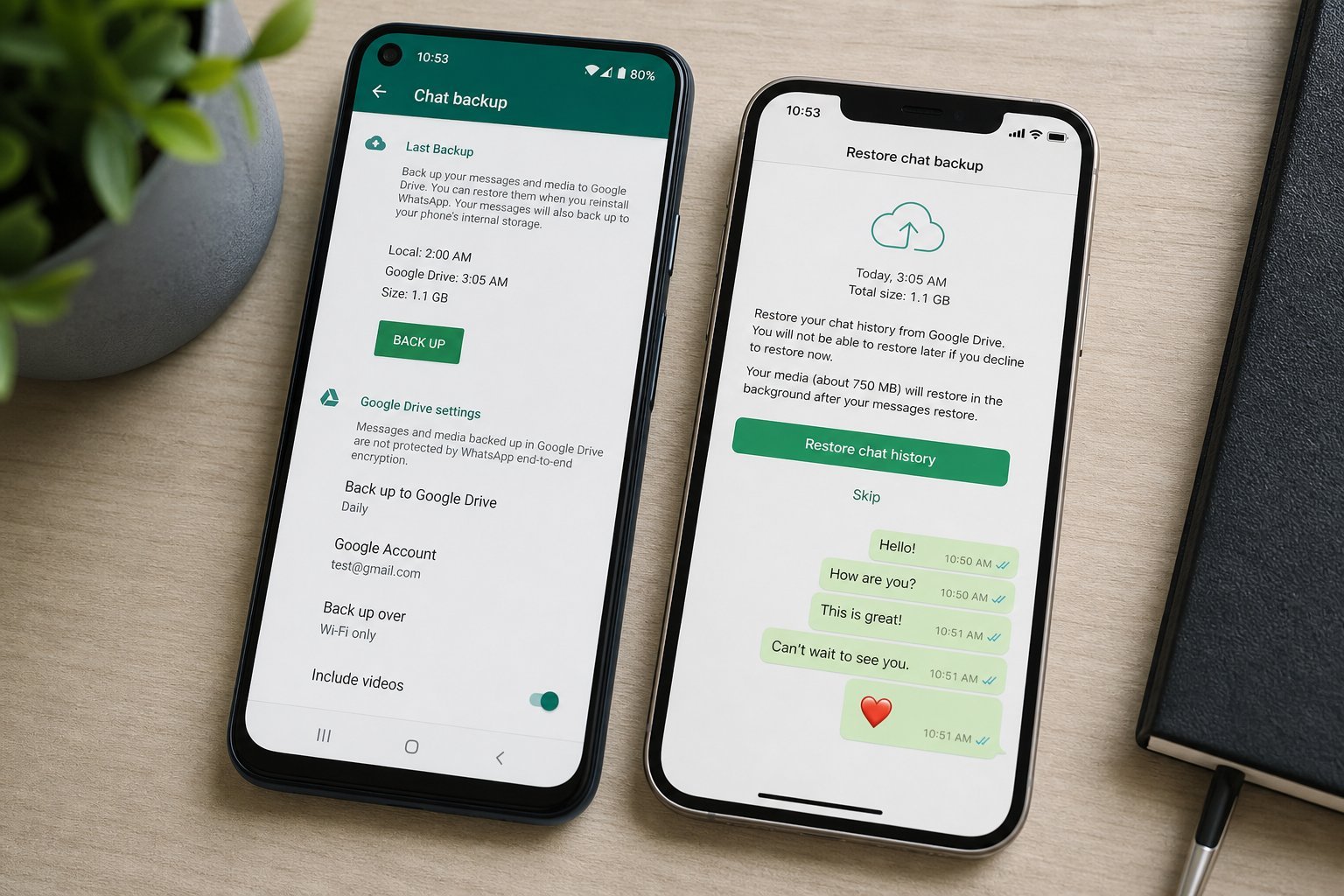
Going from one Android to another is the simplest case:
Use the same Google account, back up first, and restore on the new phone. That's the whole process for Android-to-Android.
iPhone to iPhone
iPhone to iPhone works the same way, using iCloud:
Back up to iCloud on the old phone, restore on the new one with the same iCloud account. It's the same pattern as Android.
Cross-platform (Android ↔ iPhone)
Switching between Android and iPhone is trickier, because your backup lives on different services. Here's what you need to know:
⚠️ Cross-platform needs the right method
Switching WhatsApp between Android and iPhone isn't as simple as the same-platform case — the backup services differ. Follow WhatsApp's official cross-platform transfer instructions (often done through "Move to iOS" or similar during phone setup). Don't just assume the cloud backup will carry over — it often won't across platforms.
✨ Do it during setup if possible
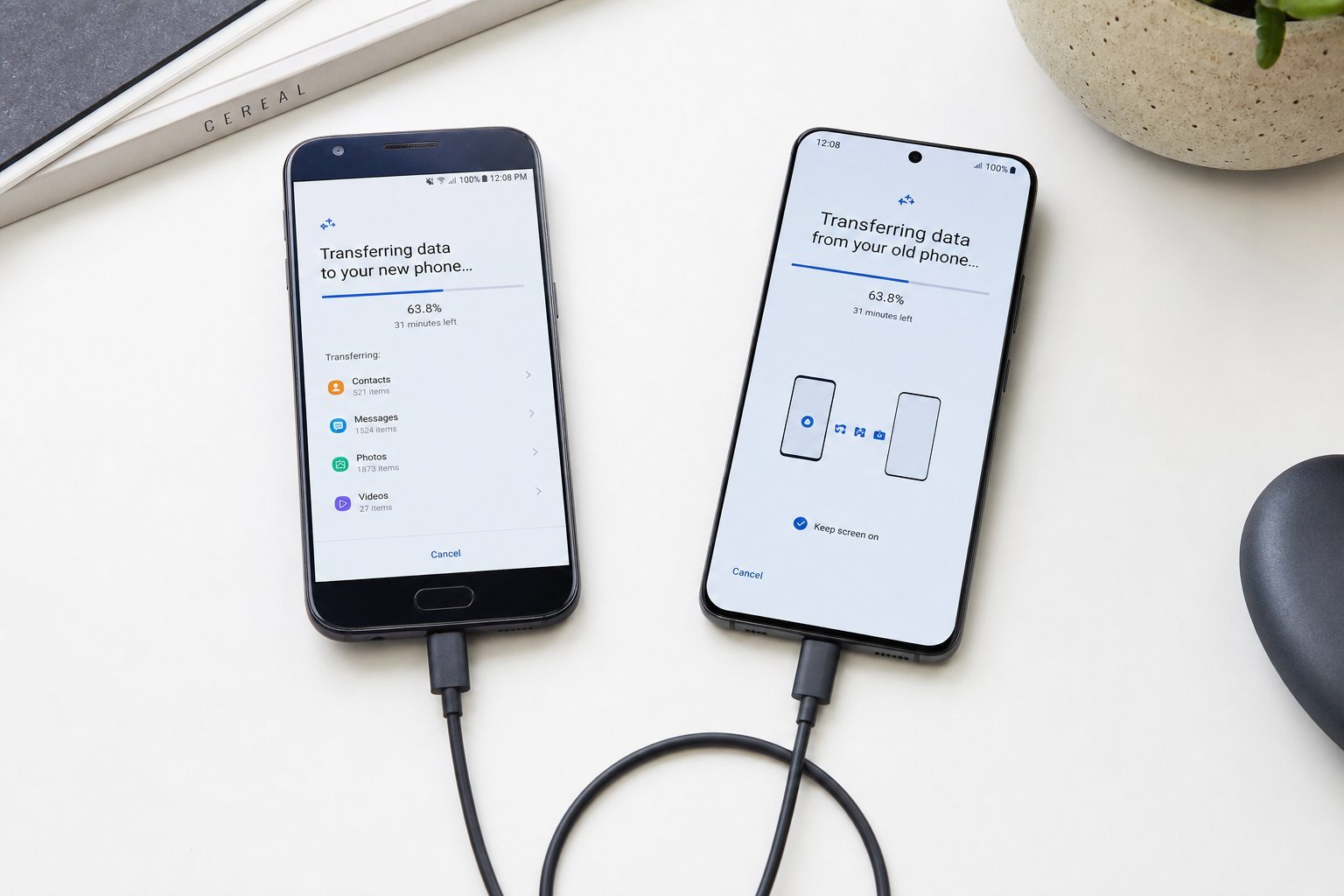
The cleanest way to transfer WhatsApp across platforms is during your new phone's setup, using the official transfer tool (like Move to iOS). It moves your WhatsApp data along with everything else. If you've already set up the phone, you may need to reset and redo setup or follow WhatsApp's specific steps.
📌 Bottom line
Moving WhatsApp to a new phone is straightforward if you back up first. For Android-to-Android or iPhone-to-iPhone, back up to Google Drive or iCloud, install WhatsApp on the new phone with the same account, and restore. For cross-platform (Android↔iPhone), follow WhatsApp's official transfer method, often done through "Move to iOS" during setup. Back up first every time, use the same account, and wait for restores to finish. That's how you keep your chats and memories.