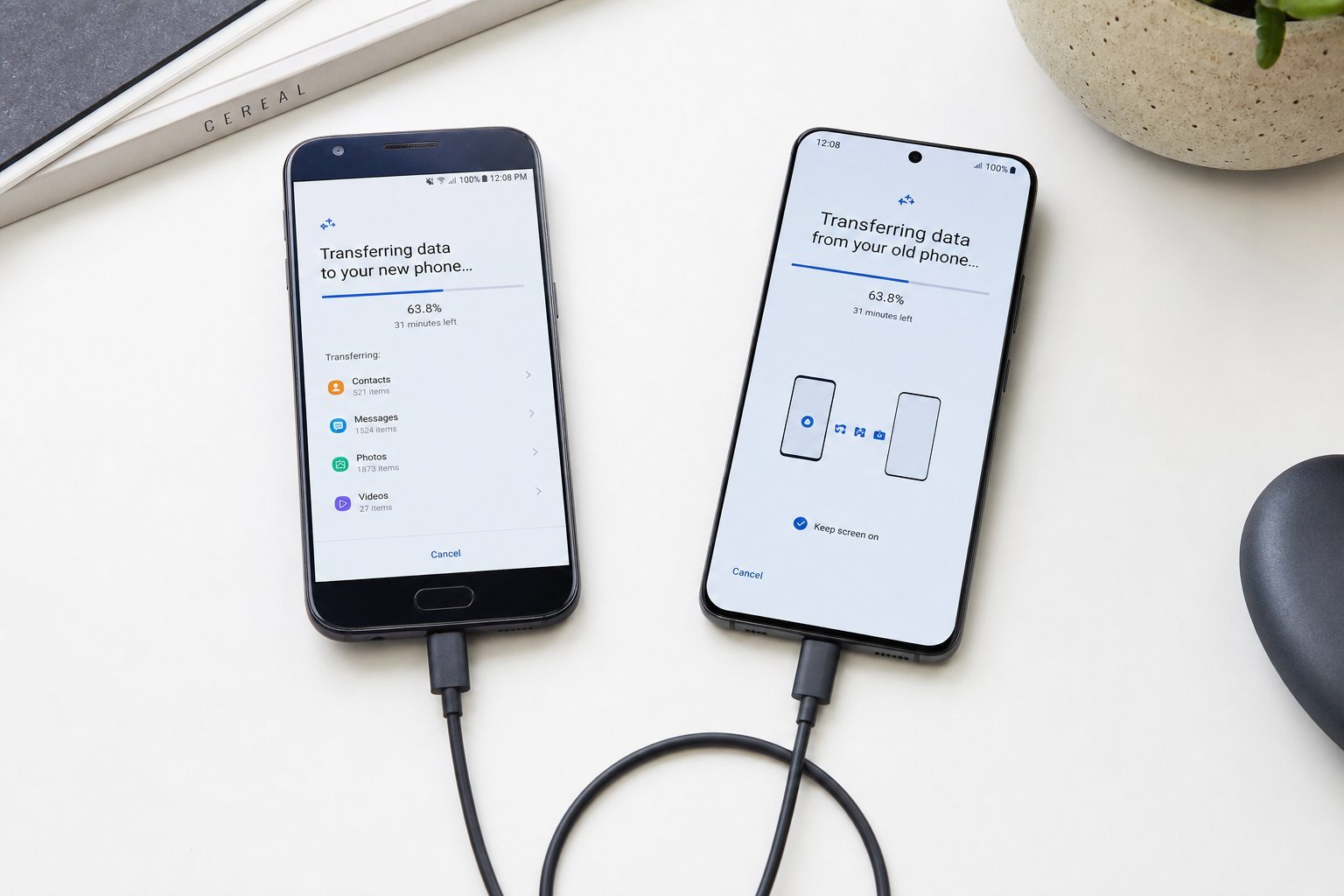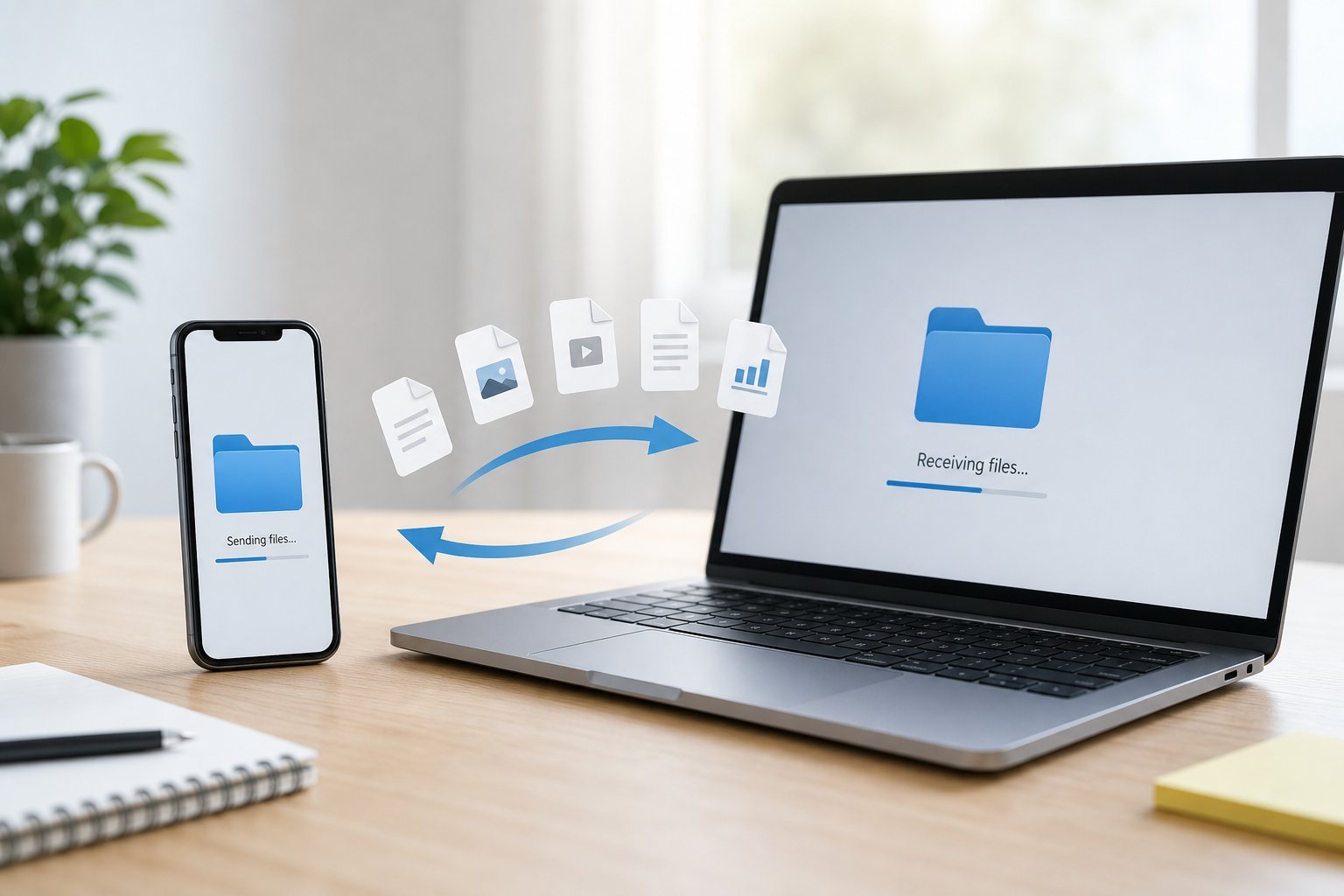
You need to move a file from your phone to your computer — or share something with a friend across the room. It sounds simple, but it's a problem everyone hits, and the "right" method depends on your devices and the file size. Emailing files to yourself gets old fast.
This guide covers the best ways to transfer files between devices — from your phone to your computer, between different platforms, and across the room.
Phone to computer
Moving files from your phone to your computer is a daily need. Here are the best methods:
For most people, cloud storage is the most convenient default — it works across any devices and keeps a copy. For large files, a USB cable is fastest.
Apple ecosystem
If you use Apple devices, you have an excellent built-in option: AirDrop. It transfers files wirelessly between iPhones, iPads and Macs almost instantly, with no setup.
- AirDrop is the fastest way to share between Apple devices — no internet needed, works nearby.
- Handoff and Continuity let you start something on one device and continue on another.
- iCloud syncs files across your Apple devices automatically.
If you're all-Apple, AirDrop is a game-changer for file transfers — it just works, quickly and securely.
Cross-platform & online
When you're moving files between different platforms (Android to iPhone, phone to a Windows PC, sharing with others), these work:
Cloud storage is the most reliable cross-platform method. For large files to others, a transfer-link service works well.
Across the room
Sharing files with someone nearby — a colleague, a friend, a family member — has quick options:
- AirDrop (Apple to Apple) — instant, nearby.
- Nearby Share (Android) and Quick Share — similar instant sharing between Android/Windows devices.
- Bluetooth — works but slow for large files.
- Cloud link. Upload and send the link — works regardless of devices.
For nearby sharing, use the built-in option on your platform (AirDrop for Apple, Nearby/Quick Share for Android). For mixed devices, a cloud link is easiest.
✨ Match the method to the file
Small file, any devices → cloud or messaging. Large file, same brand → AirDrop/Nearby Share. Large file, cross-platform → a USB cable or a transfer-link service. Match the method to the file size and your devices, and transfers stop being a hassle.
📌 Bottom line
Transferring files between devices is easy once you pick the right method. For phone-to-computer, cloud storage is the convenient default and a USB cable is fastest for large files. Apple users have AirDrop — instant and seamless. For cross-platform, cloud storage or a transfer-link service works universally. For nearby sharing, use your platform's built-in option (AirDrop or Nearby/Quick Share). Match the method to the file and devices, and you'll stop emailing files to yourself.