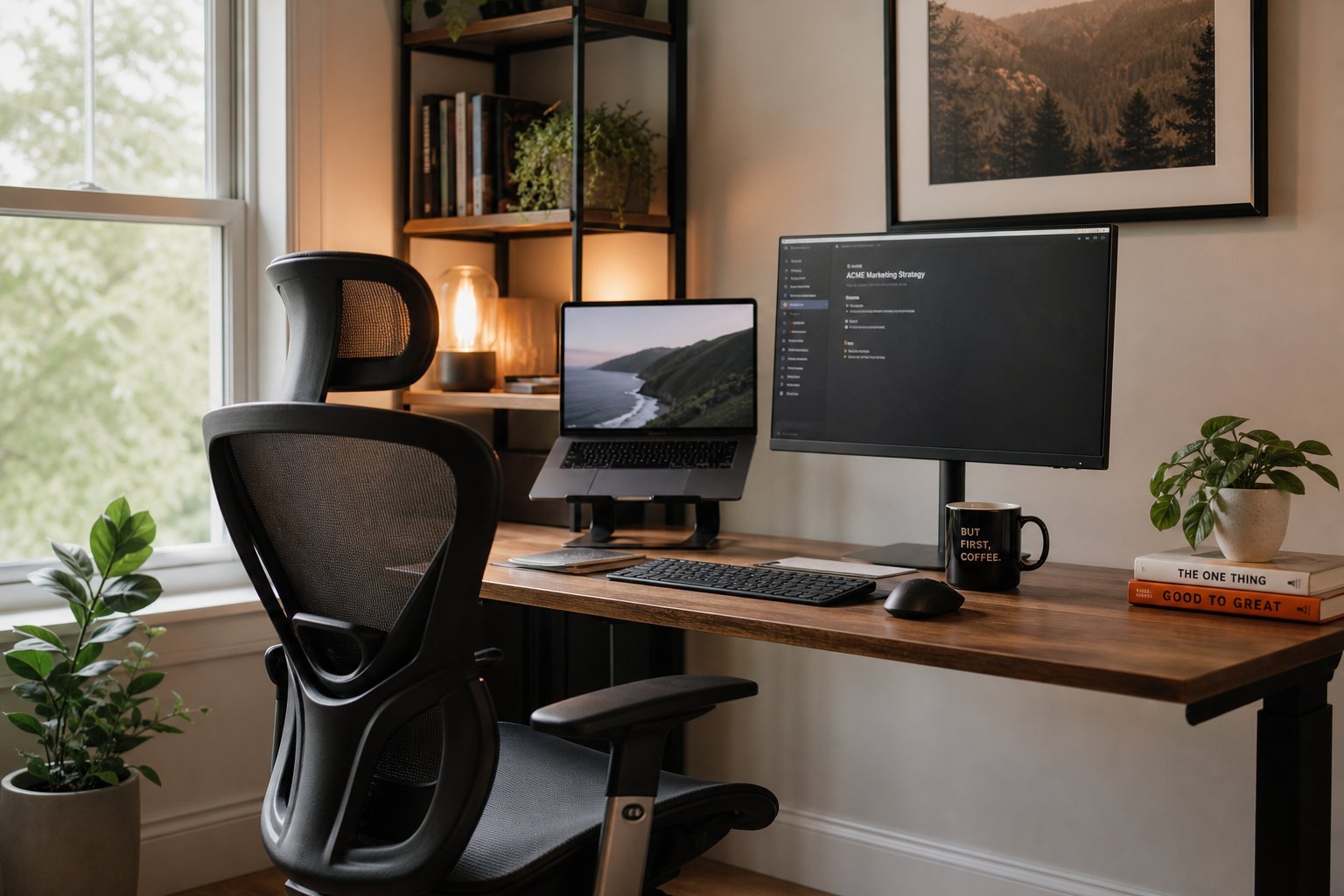
Working from home has become a normal part of life for millions of people — but many are still making do with a laptop propped on a kitchen table, squinting at a small screen, fighting for space with the coffee maker. If that sounds familiar, a few simple upgrades can transform your home office from "making do" to genuinely comfortable and productive.
You don't need an expensive, elaborate setup. Here's how to build a practical, comfortable home office — starting with what matters most, and adding more as your budget allows.
What we'll cover
Ergonomics: comfort matters most The screen & keyboard Internet & connectivity Lighting & environment Extra gear worth addingErgonomics: comfort matters most
The most important thing in a home office isn't the technology — it's your comfort. Working hunched over a laptop on a dining chair leads to back, neck and wrist pain that no amount of tech fixes.
The essentials of good posture:
If your setup causes discomfort, address it first — even a simple chair cushion, footrest and laptop stand make a huge difference for very little money.
The screen & keyboard
Using a single small laptop screen all day is tiring. Two upgrades improve this dramatically:
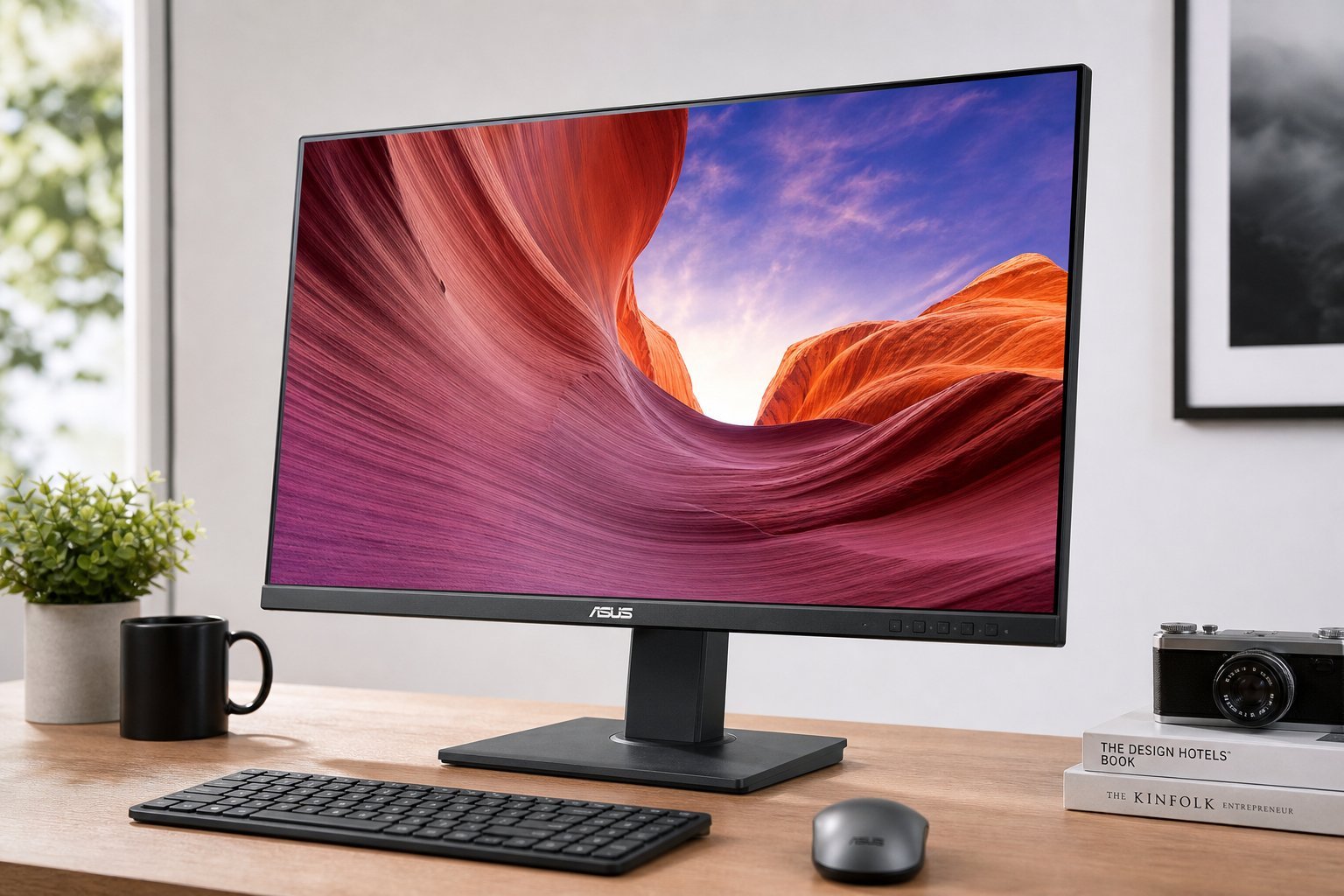
- An external monitor. A larger (or second) monitor gives you more screen space, reduces eye strain, and makes multitasking far easier. Even a modest 24–27" monitor helps (see our monitor guide).
- An external keyboard and mouse. Working on a laptop's built-in keyboard and trackpad is awkward for long periods. A comfortable keyboard and mouse improve comfort and speed.
These are the two highest-impact upgrades for daily comfort and productivity. A monitor, plus keyboard and mouse, turns a cramped laptop setup into a proper workstation.
Internet & connectivity
Nothing derails remote work like a bad connection — dropped video calls, slow uploads, laggy files. Make sure your home network is up to the task:
- Use a wired connection if possible, or sit close to the router for stable Wi-Fi (see our internet guide).
- Consider a mesh system if your router can't reach your office with a strong signal.
- Have a backup plan. If your internet drops, a phone hotspot can keep you online in a pinch.
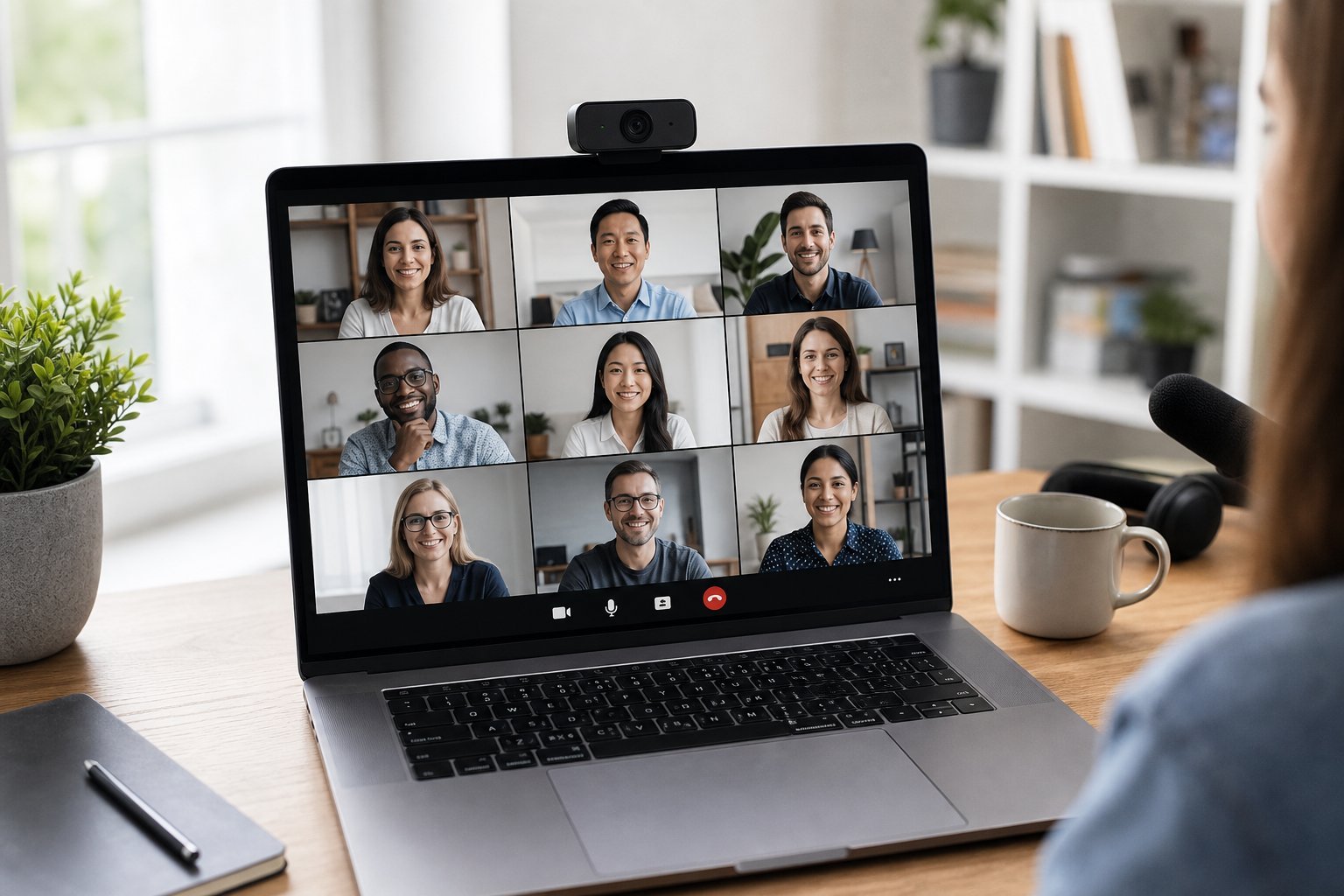
- Test your setup before important calls — check the camera, mic and connection (see our video meeting guide).
A reliable connection is the foundation of remote work. Invest in fixing any dead zones or weak spots before worrying about extra gadgets.
Lighting & environment
Lighting and environment affect both your comfort and how you look on video calls:
- Natural light is best. Face a window if you can — it's good for your mood and makes you look great on camera.
- Don't sit with a bright window behind you — it leaves you in shadow on video calls. Face the light instead.
- Reduce glare on your screen from windows or overhead lights.
- Keep your space tidy. A clean, organized desk reduces distraction and stress.
- Minimize noise. If background noise is a problem, headphones or a quiet space help (see our earbuds guide).
A little attention to lighting and environment makes remote work more pleasant and professional.
Extra gear worth adding
Once the basics are sorted, these extras can further improve your setup (add as budget allows):
✨ Upgrade in order
Build your setup in order of impact: 1) comfort/ergonomics, 2) an external monitor + keyboard/mouse, 3) a reliable internet connection, 4) lighting, then 5) extras like webcams and mics. You don't need everything at once — start with what addresses your biggest pain point.
📌 Bottom line
A great home office doesn't need to be expensive. Start with ergonomics — eye-level screen, back support, keyboard at elbow height. Add an external monitor and keyboard/mouse for the biggest productivity boost. Make sure your internet is reliable, set up good lighting, and add extras like a webcam and headphones as budget allows. Build it in order of impact, and you'll turn a "making do" setup into one that's comfortable and productive.