You use a web browser every day — it's the window to the internet. But if you're like most people, you're probably using whatever browser came with your computer or phone, and you've never stopped to ask: is this the right one, and am I using it well?
Your browser affects how fast pages load, how safe you are online, how many tabs you can keep open, and even how much battery your laptop uses. The good news: choosing and configuring a good browser takes minutes and makes a real difference. This guide covers the best browsers, how to pick one, and the settings worth changing.
What we'll cover
What a browser does & why it matters The best browsers compared How to choose the right one Settings worth changing right now Staying safe & privateWhat a browser does & why it matters
A web browser is the software you use to view websites — but it's not all the same underneath. Browsers differ in speed, memory use, security, and features. The one you use shapes your whole online experience.
Some browsers are faster. Some use less memory (so your laptop doesn't slow down). Some are better at blocking trackers and ads. Some sync seamlessly with your phone. Getting these choices right makes browsing noticeably more pleasant — and safer.
The good news: all the major browsers are free, and switching takes about two minutes. There's no downside to choosing one you like better than the default.
The best browsers compared
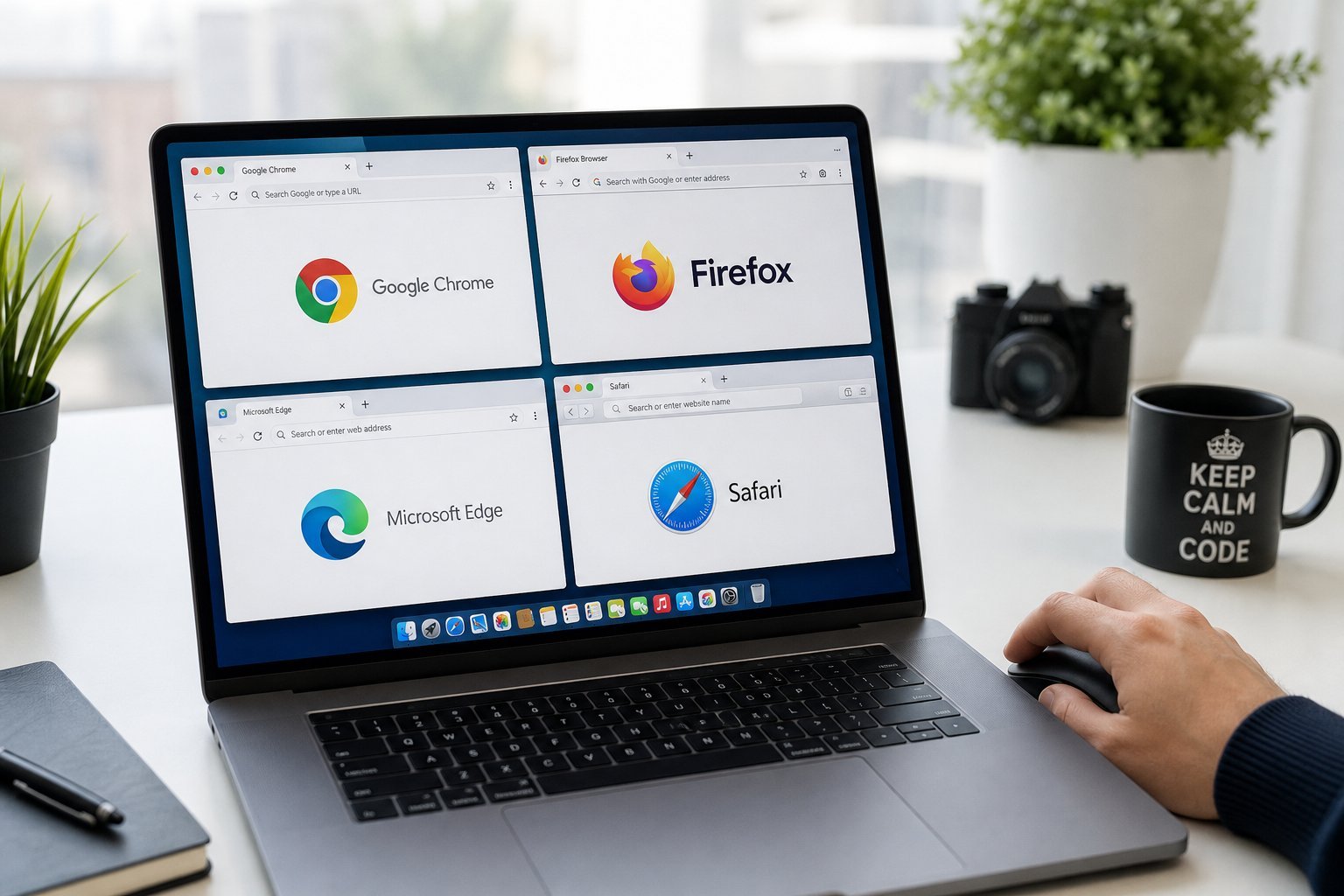
Here are the browsers you'll actually hear about, and where each one shines:
| Browser | Best for | Notes |
|---|---|---|
| Google Chrome | Extensions & ecosystem | Most popular, huge extension library |
| Microsoft Edge | Windows users, efficiency | Fast, low memory, built into Windows |
| Mozilla Firefox | Privacy & flexibility | Independent, strong privacy focus |
| Safari | Apple users | Great battery life on Mac, iCloud sync |
| Brave | Built-in ad/tracker blocking | Privacy-first, fast |
| Opera | Built-in extras | Free VPN, integrated apps |
You can't go wrong with any of these. The "best" is the one that fits your devices and priorities. Don't overthink it — pick one, use it for a week, and switch if you're not happy.
How to choose the right one
Here's a simple decision process based on your situation:
The theme: match your browser to your devices and services. And don't feel locked in — you can install multiple and use different ones for different things, or switch anytime.
Settings worth changing right now
Whichever browser you choose, a few settings make a real difference:
- Set your homepage and default search engine to something useful — it saves time every day.
- Turn on sync (if you use one device or want your bookmarks/passwords everywhere). Log in to sync bookmarks, history and settings.
- Manage notifications. Sites constantly ask to send notifications. Turn off notifications for sites you don't want — a browser full of notification spam is a distraction machine.
- Enable safe browsing — the built-in protection that warns you about dangerous sites and downloads.
- Set a good default download location and clean it occasionally.
✨ The notification cleanup
If your browser keeps pinging you with site notifications you didn't ask for, go into settings and block or disable notifications for most sites. This single change cuts a huge amount of daily distraction.
Staying safe & private
Your browser is your first line of defense online. A few habits and settings keep you safe:
- Keep it updated. Browser updates include critical security fixes. Enable auto-update.
- Turn on private/incognito mode for sensitive sessions (though note it doesn't hide your activity from your internet provider — a VPN does that, see our VPN guide).
- Use a password manager so the browser autofills strong, unique passwords (see our guide).
- Be careful what you type. Check the address bar is the real site before entering login or payment details.
- Don't download from random sites. Your browser's safe-browsing warnings are there for a reason — heed them.
Your browser is a tool you use every single day. Taking a few minutes to pick the right one and configure it well pays off in speed, safety and peace of mind every time you open it.
📌 Bottom line
Your browser shapes your whole online experience, and the best one depends on your devices and priorities. Safari for Apple users, Edge for Windows, Chrome for Google power-users, and Firefox or Brave for privacy. Configure sync, tame notifications, enable safe browsing, and keep it updated. Five minutes of setup makes browsing faster, safer and less distracting every day.