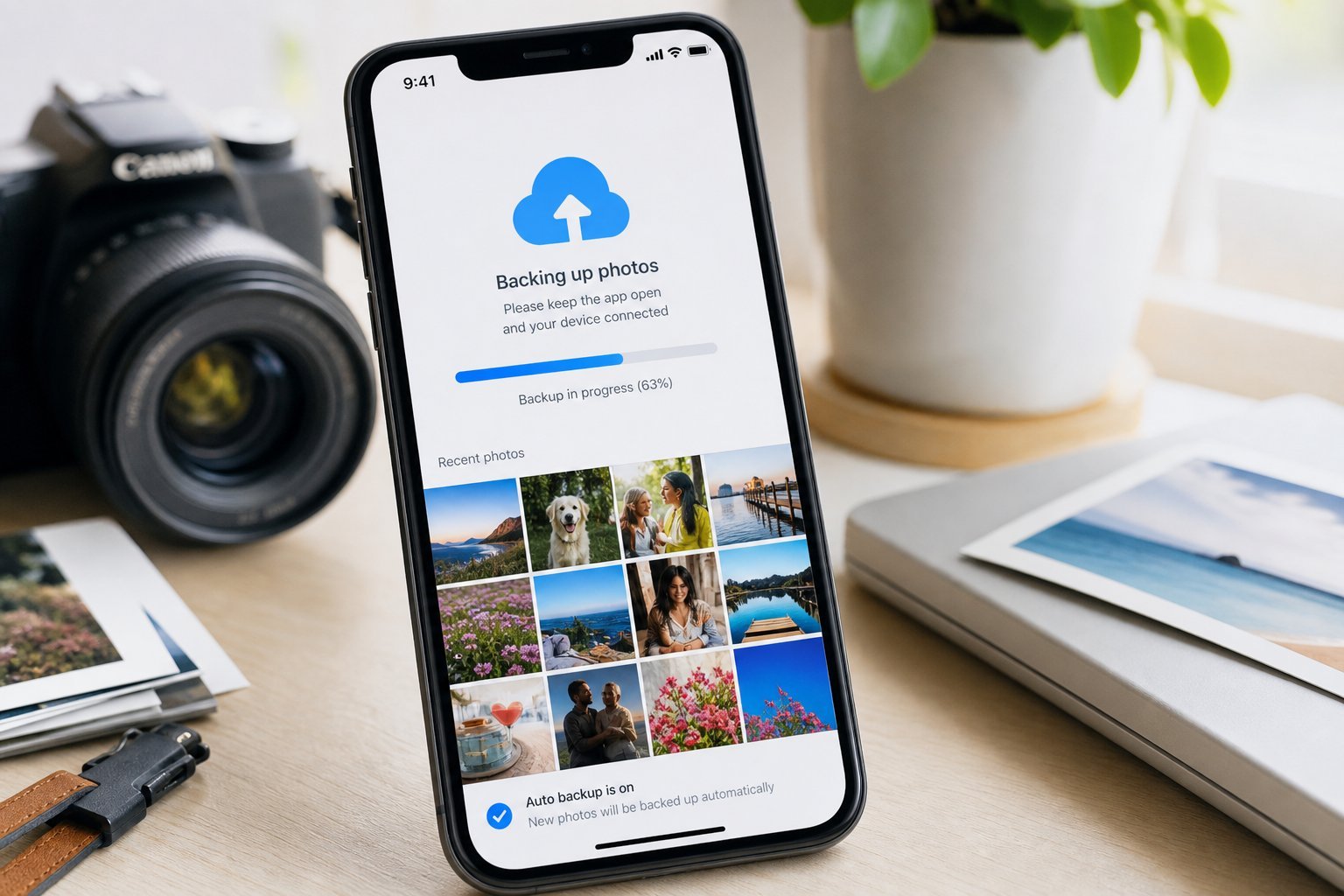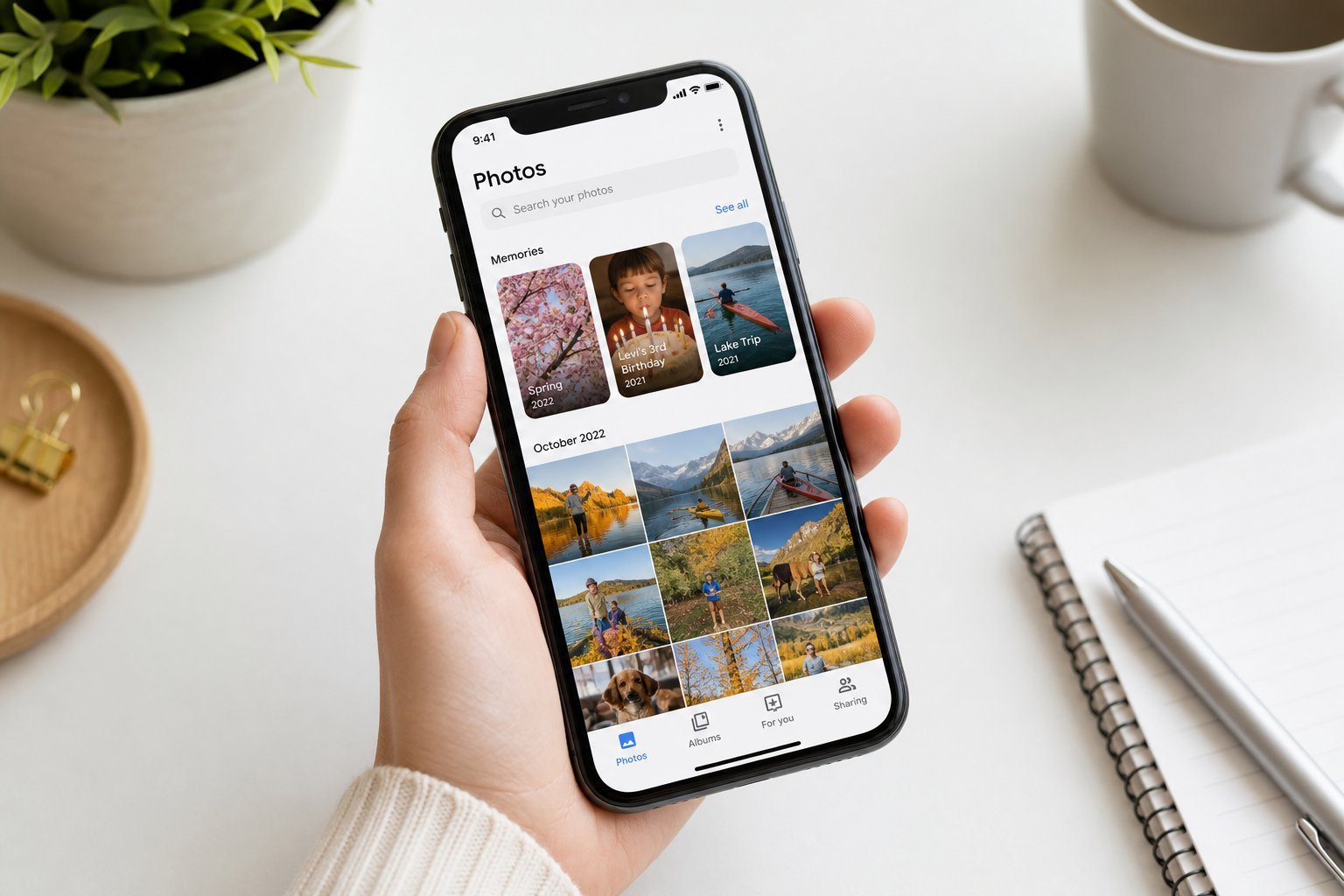
Google Photos is one of the most popular photo apps in the world — and for good reason. It backs up your photos, lets you search them intelligently, and keeps them safe across devices. If you're not using it (or not using it well), you're missing out on a genuinely powerful free tool.
This guide covers how to set up Google Photos, its best features, and how to make it work for you.
Setting it up
Getting started with Google Photos is easy:
Once backup is on, your photos are automatically protected and available across all your devices (see our photo backup guide).
The best features
Google Photos isn't just a backup tool — it's packed with useful features:
- Powerful search. Search by person, place, object or even text in photos ("dog," "beach," "receipt"). It's remarkably good.
- Face grouping. It groups photos of the same people so you can find all photos of someone easily.
- Automatic memories. It creates "memories" and collages from your photos automatically.
- Auto-editing. One-tap enhancements and smart suggestions improve your photos.
- Shared albums. Easily share albums with family and friends.
These features turn a photo backup into a genuinely useful photo library you can actually find things in.
Backup & storage
Here's the important practical detail about Google Photos: storage isn't unlimited anymore. Understanding this avoids surprises:
✨ Use "storage saver" if space is tight
If you're concerned about storage, back up at "storage saver" quality — the photos look great for everyday use and use much less space. Reserve original quality for photos that genuinely need full resolution (like professional work).
Tips to get the most
Here are a few tips to make Google Photos work better for you:
💡 The key habit
Use Google Photos' search — it's the feature that makes the app so powerful. Instead of scrolling through thousands of photos, search by person, place or keyword to find anything in seconds. Most people are amazed at how well it works.
📌 Bottom line
Google Photos backs up your photos automatically and offers powerful features — excellent search, face grouping, memories and easy sharing. Set it up by enabling backup, and understand that storage is shared with your Google account (use "storage saver" quality if space is tight). Make the most of it by searching instead of scrolling, naming people, and using "free up space" to reclaim phone storage. It's one of the most useful free tools for protecting and organizing your photos.