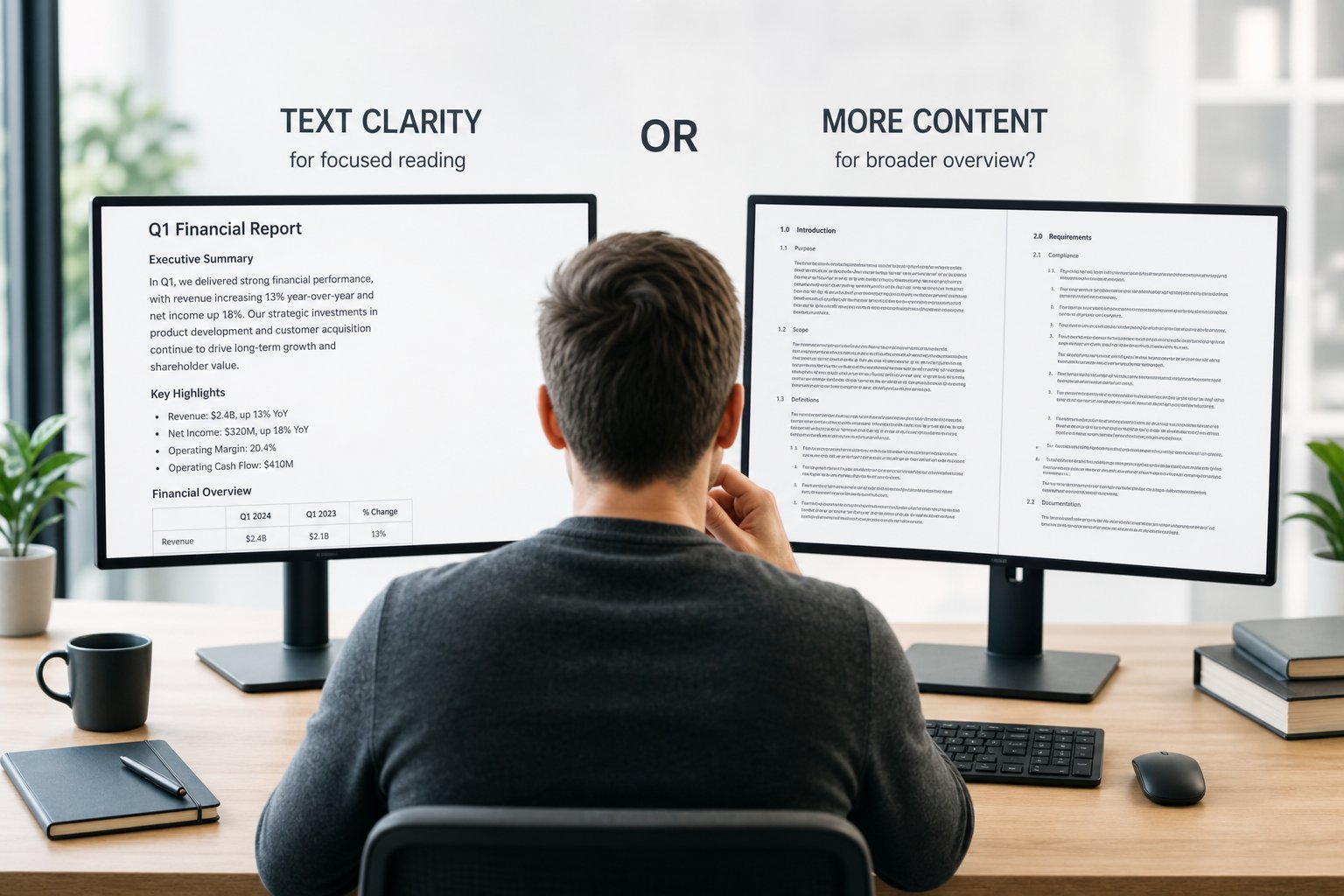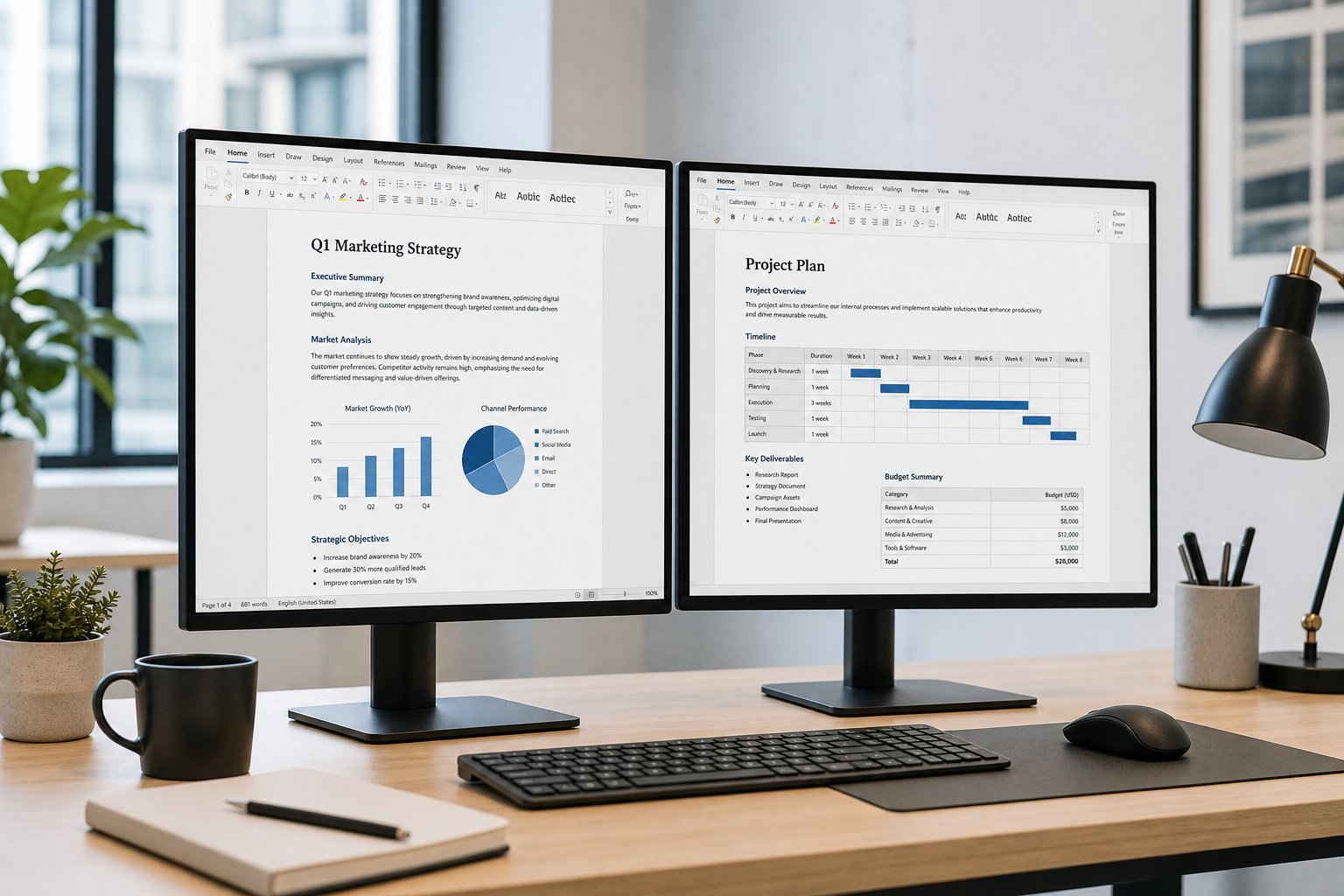
A second monitor is one of the best productivity upgrades there is — it gives you more screen space for multitasking, and many people find it dramatically improves their workflow. We've mentioned it in our monitor guide; this guide covers how to set up a dual-monitor system properly.
Here's how to set up a second screen for more space and better productivity.
Do you need a second monitor?
First, consider whether a second monitor is worth it for you:
A second monitor is worth it if you multitask or run out of screen space. If your main monitor is adequate and you rarely multitask, you may not need one.
Choosing the second monitor
Here's how to choose a second monitor:
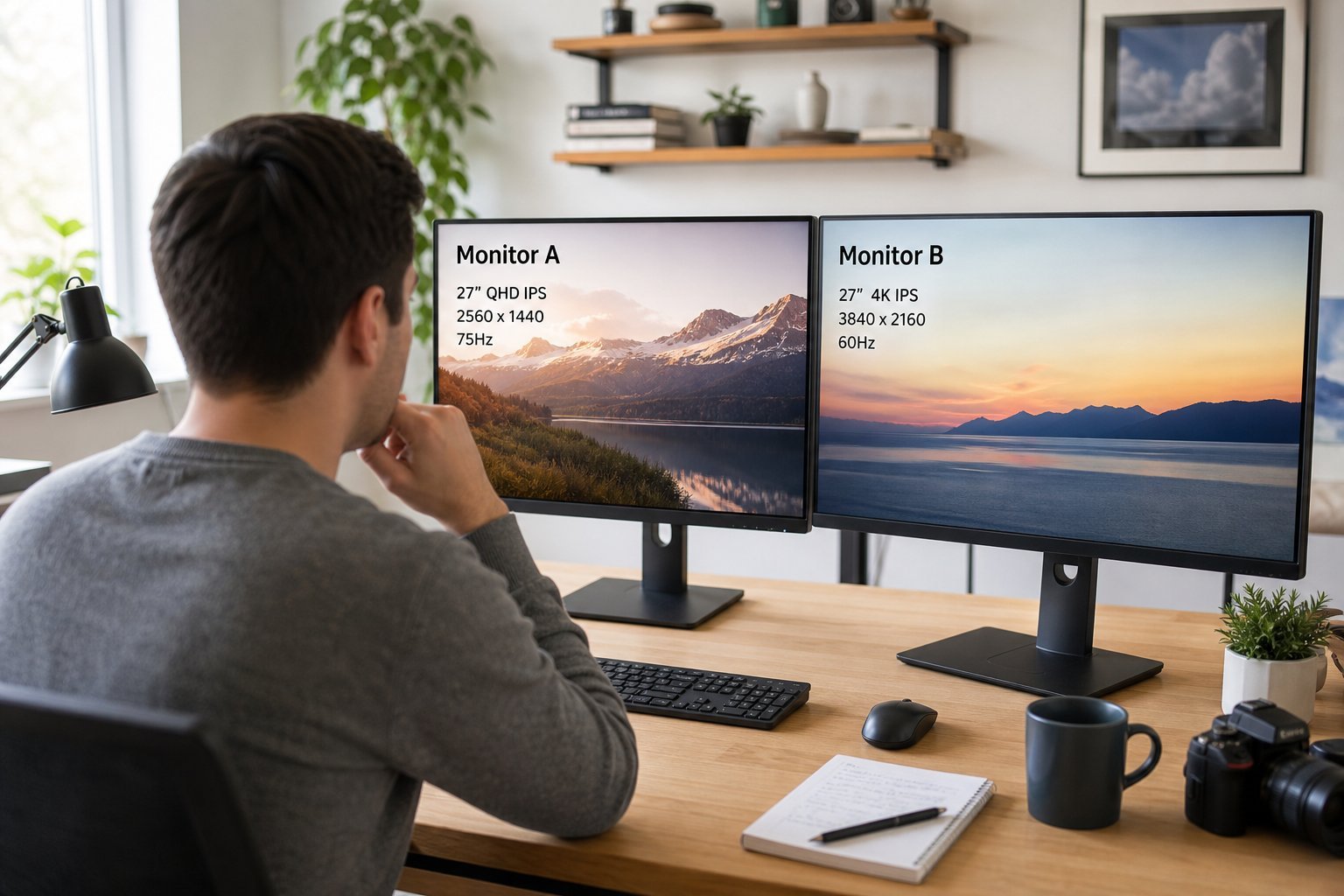
Match the second monitor to your main one for consistency, consider its role, and make sure your computer supports it. You don't need to overspend.
Connecting & setting up
Here's how to set up a dual-monitor system:
✨ For laptops, consider a dock or USB-C
Many laptops connect to a second monitor via HDMI or USB-C. If your laptop has limited ports, a USB-C hub or docking station lets you connect a monitor (and more) with one cable. It's a clean way to add a second screen to a laptop setup.
💡 The dual-monitor payoff
A second monitor gives you real screen space for multitasking — two documents side by side, email + work, reference + writing. It's one of the most effective productivity upgrades. Set it up by connecting it, arranging the displays to match your desk, and adjusting resolution. The productivity boost is often dramatic.
📌 Bottom line
A second monitor is a great productivity upgrade if you multitask or run out of screen space. Choose one that matches your main monitor, fits your desk and budget, and is supported by your computer. Set it up by connecting it, arranging the displays to match their position, and adjusting resolution. For laptops, a USB-C hub or dock makes it easy. A second screen gives you the space to be dramatically more productive.